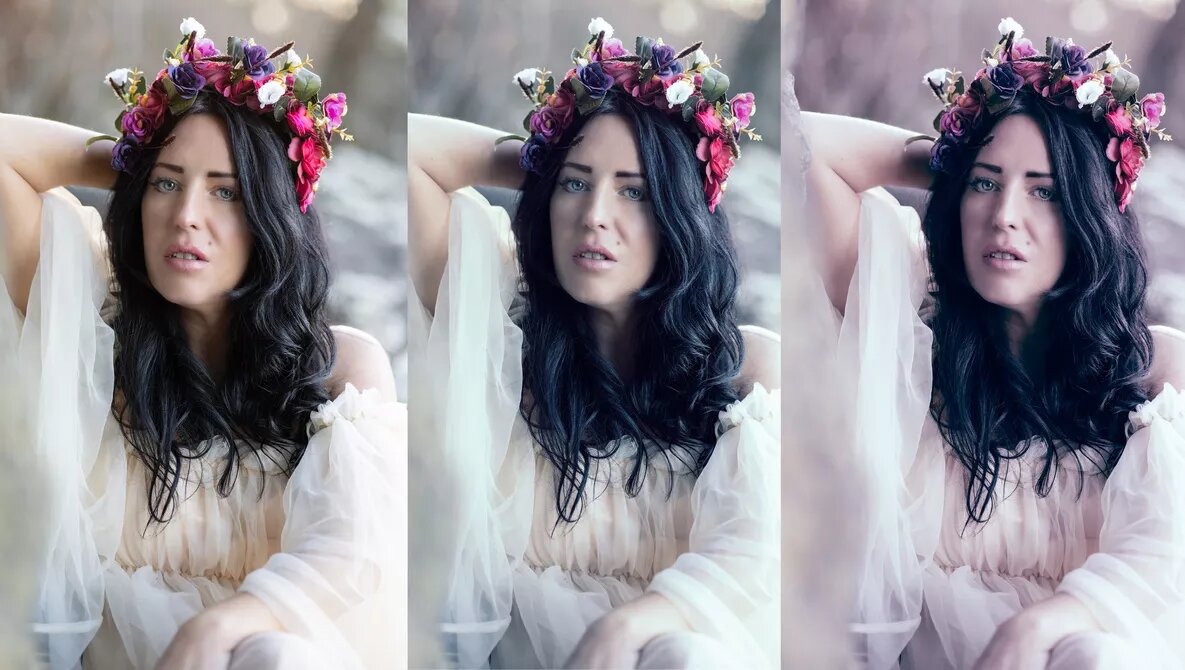
3 Color Grading Methods to Enhance Your Images
-
 Loading...
 - Guzman Santiago
- 16 Feb 2023
- 57 Views
- 0 Like
- 0 Comment
Color grading your images can be fun, yet, in some cases, an arduous task. The subtle nuances that it can provide can make or break an image. Learning to color grade effectively takes years, and understanding the subtle differences that adding numerical values can make to the RGB of your image is an art form.
Color correcting and color grading are two different things, and although they require similar knowledge, color grading takes it even further into the specialist realm. Some of us create LUTs (Color Lookup Tables) to quickly add an overall effect to our still images or video.
There are many different methods that we can employ to introduce us to the versatility of color grading, and in this article, I will cover three of them so that if you haven't before, you can dip your toes into the world of color grading.
Method 1: Purchase
First and foremost, the quickest way is to purchase LUTs that have already been created by someone else. However, the downside to this is the effect it will have on your pocket. LUTs can be expensive, depending on who has created them. Color grading is a professional role in its own right, and people spend years learning and perfecting the subtleties that they can add to an image. The look and feel they can provide to an image takes a lot of skill.
One such company I have used in the past is The Lut Hut, where you can purchase movie-style LUTs for both your still and moving images. The quality of these is very high, and the ease of use can totally transform your images and give you the look you are seeking. 
Method 2: Create Your Own
Creating your own LUTs is not as difficult as it seems. Although they might not be on par with the professionals, they will still give you insight into the process and perhaps a unique style that you can build from. One such method I use is taking a still from a movie and creating the color profile for the image using Adobe Color Theme. I then add the color profile to my libraries and then, using a gradient map in Photoshop, apply the extracted colors. Read More…