How to clear cache in Chrome, Safari and Edge browsers? follow these tips
-
 Loading...
 - nancy amelie
- 08 Jul 2022
- 114 Views
- 0 Like
- 0 Comment
Have you ever heard of browser caching? If your answer is no, know that the meaning is quite simple. Caches are information saved in programs used to "browse" the internet such as Google Chrome, Safari or Microsoft Edge.
They can make browsing faster and more efficient because they save certain documents, photos or other information on your computer or smartphone . So when you come back to a site, loading is easier.
But, precisely because of this, these files can occupy a large space in the device's memory, making the browser slower and crashing. Therefore, it is recommended to remove cached data from time to time.
See below for a step-by-step guide on how to do it:
Google Chrome
1. In the upper right corner, click on the three dots and then access the "Settings" option;
2. On the next screen, click on "Privacy and Security" and then on "Remove Browsing Data";

3. If you want to delete everything, select "All period". Just below, check the option "Cached images and files" (if you want to carry out a complete cleaning, check the options "Browsing history" and "Cookies and other site data");

4. Finally, to confirm the wipe, tap "Remove data" and the process is finished.
Safari
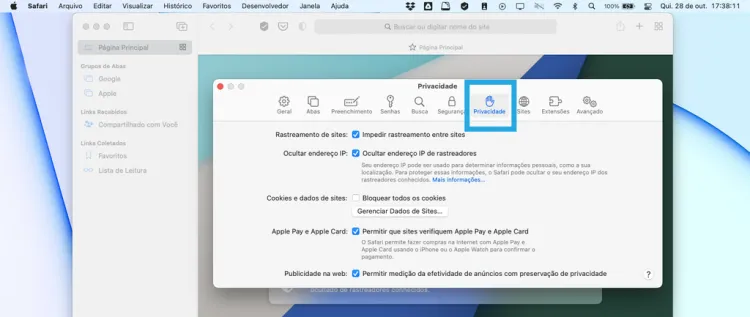
1. Click "Safari" in the upper left corner and go to "Preferences". Then click on "Privacy", where you will be redirected to the location to perform the cleaning;
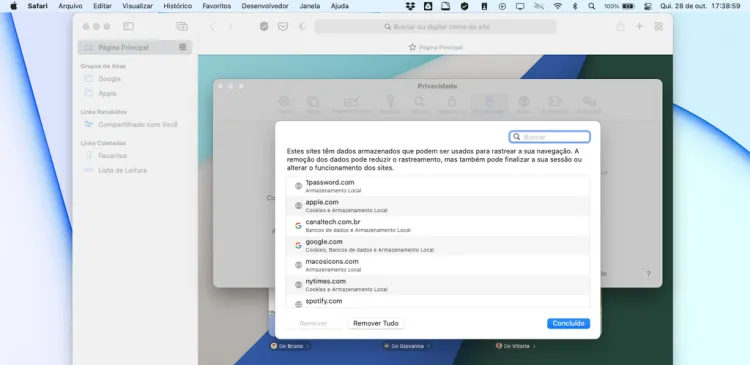
2. Select "Site Data Manager" and then "Remove All". And it's done, cleaning done!