How to Hide Photos on Your iPhone
-
 Loading...
 - Cyrillus Benitez
- 15 Jul 2022
- 127 Views
- 0 Like
- 0 Comment
Apple makes it relatively easy to hide photos that are stored on an iPhone and this feature can be quite important when the phone might be used by anyone other than the owner of the device.
While the Lock Screen provides a first layer of security, there are times when it’s most convenient to hand the phone to someone else to view a photo or a web page and it only takes a few taps and swipes to get to a picture that the user might not want to share publicly.
Beyond Apple’s built-in capability to hide photos, there are third-party solutions that are particularly handy when using an older iPhone that doesn’t have the latest security features or when more advanced options are required.
Hiding Photos on an iPhone, Step by Step
For most iPhone owners, hiding a photograph can be done just by selecting one or more pictures in the Photos app, then tapping the Share Sheet button at the lower-left of the screen, and selecting the Hide option. This will immediately remove these photos from the normal library and any albums that previously contained them.
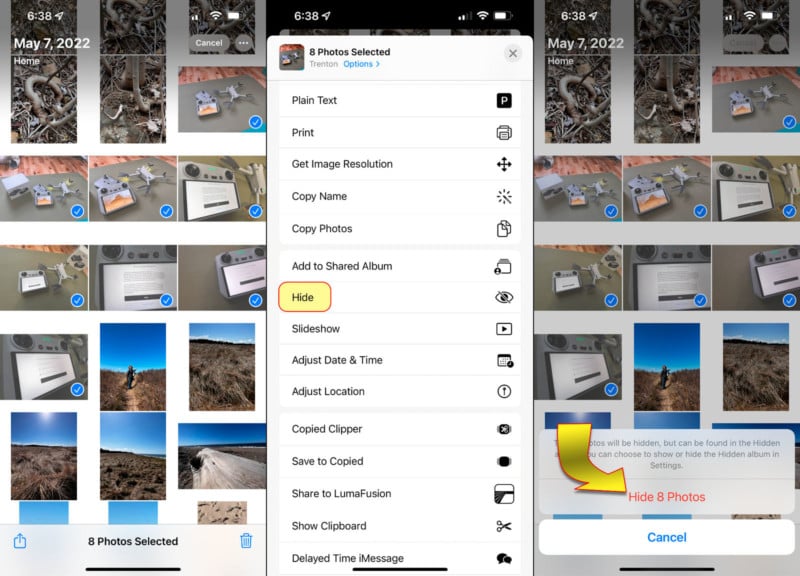
If the Hide option isn’t available, that means it can be enabled in the Settings app. The user should scroll down to the media section which contains the options for Music, TV, Photos, and more, select Photos, then enable Hidden Album which results in a new album appearing in the Photos app that’s named ‘Hidden.’
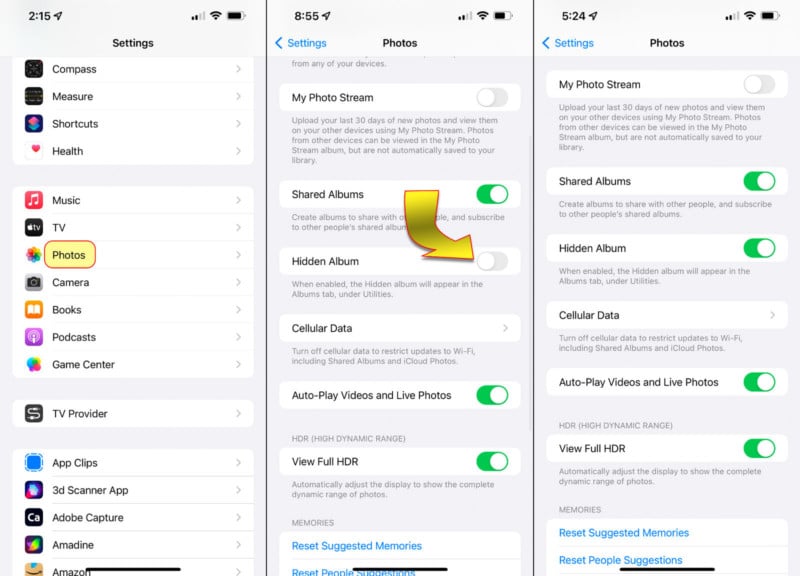
How to See the iPhone’s Hidden Album
Hidden photos can be viewed afterward by opening the Albums tab in the iPhone’s Photos app. The Hidden album is placed near the bottom, making it less likely to be seen accidentally. Read More...