How to Reverse Image Search on iPhone
-
 Loading...
 - Farid Slimani
- 02 Feb 2023
- 70 Views
- 0 Like
- 0 Comment
Reverse image search is an incredibly useful technology, allowing you to locate online photos that are an exact match or similar in some way to your own. It can also be used to search for products and places just by supplying a picture, even if it’s an image that you found online. With the right app, it’s possible to get a live result from your smartphone’s camera.
Reverse image searching is commonly used by photographers to find unauthorized uses of their work on the Internet, but the technology has a much wider scope of uses beyond that as well. In this guide, we will share different ways you can perform a reverse image search on any image using an iPhone.
Table of Contents
- Using the Google App
- Related Image Search with Safari
- Using Google’s Chrome Browser
- Bing’s Reverse Image Search
- Uses for Reverse Image Search
Using the Google App
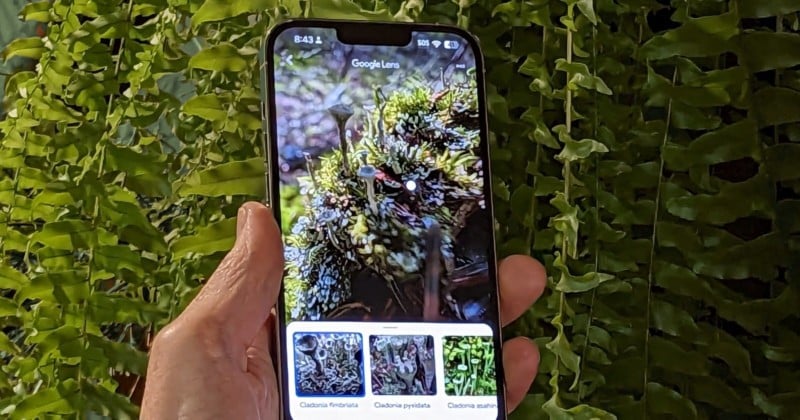
Google has the world’s most popular reverse image search and this is incorporated into its Google Lens image AI technology. You might think of this as an Android exclusive, but you can get easy access to Google Lens (and Google Assistant) on your iPhone by installing the Google app. To begin a reverse image search, open the Google app and tap the Lens icon which looks like a colorful camera in the search bar. If you have added the Google widget to your home screen, you can tap the Lens icon directly. Read More…