How to set up and use Google Assistant or Alexa with Samsung SmartThings
-
 Loading...
 - Nessa Smith
- 07 Nov 2022
- 63 Views
- 0 Like
- 0 Comment
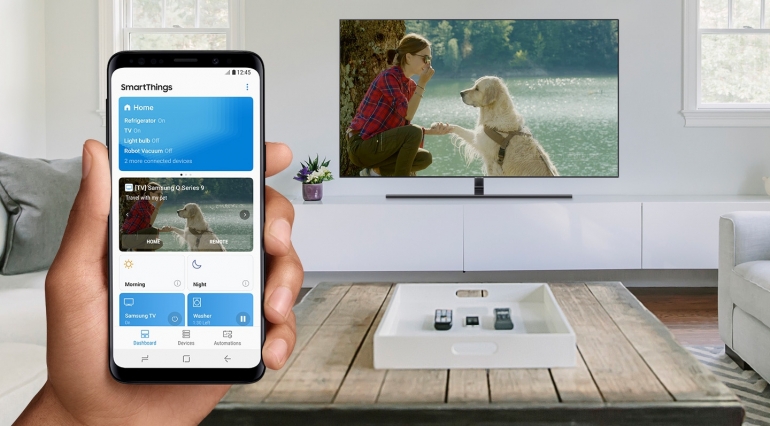
With Samsung SmartThings, users can build, customize and manage their home, workout and office devices. Smart home technologies are designed to make life easier, more connected and work faster.
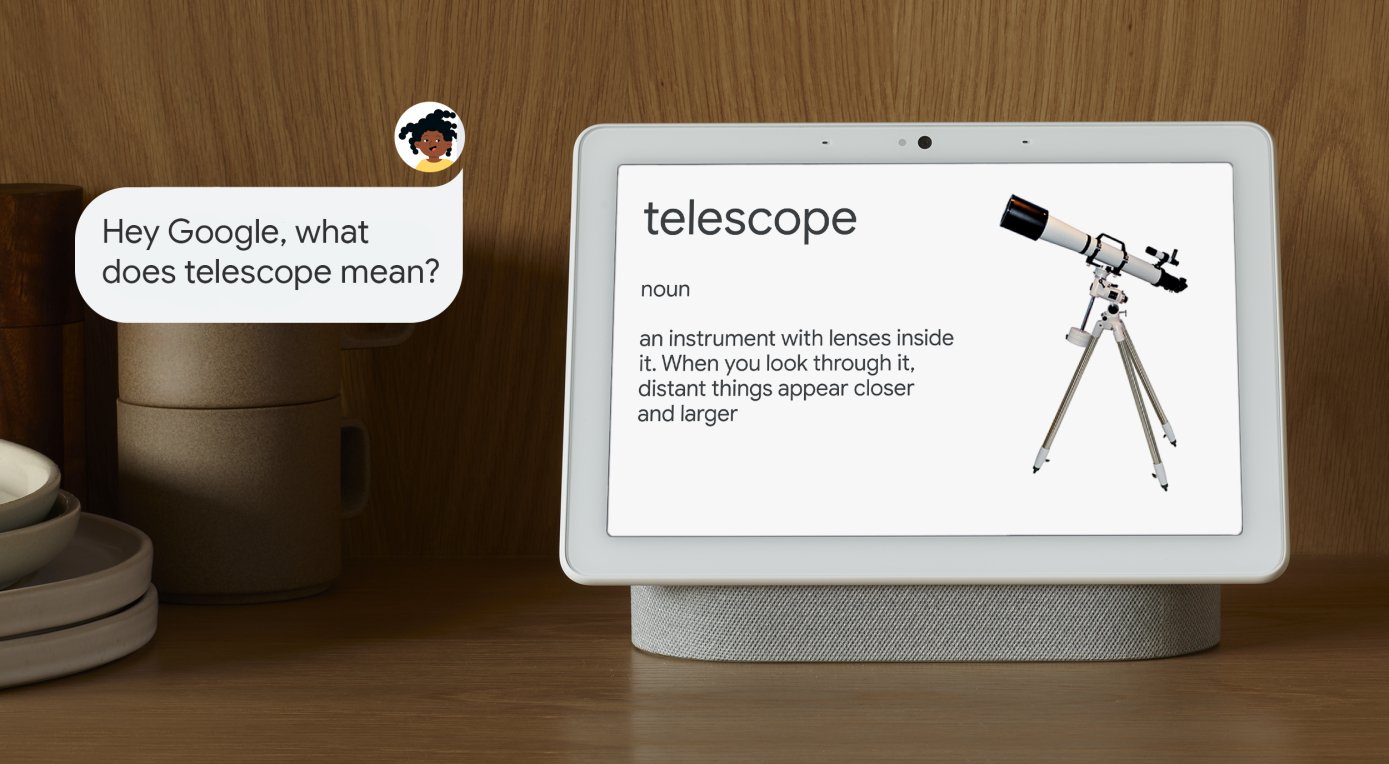
Using the SmartThing app — now available with Matter device standard compatibility — everything from your smart TV to your smart kitchen appliance is interconnected and can be controlled through your central hub or smartphone. If typing commands or turning on and off devices with simple taps is not enough, you can also connect voice controllers like Alexa or Google Assistant. Once you configure them, you can control all your devices and smart home with nothing but your voice.
How to set up SmartThings
The first step to controlling your devices with voice commands is installing and setting up SmartThings. If you already have it installed, you can skip this section and go straight to the step-by-step for Alexa or Google Assistant.
Set up SmartThings on your smartphone and add devices:
1. Download the SmartThing app from the Play Store for Android or the App Store for iPhone devices.
2. Create or login into your Samsung account.
3. Open the SmartThings app on your phone.
4. If it’s your first time using it, review the information, then tap Start and Continue.
5. Allow permissions.
6. You can now start adding your devices: Tap the Devices tab, then tap the Home icon and choose your desired location for the device. Read More...