Understanding Computer Memory in Modern IT Hardware
-
 Loading...
 - Harry Smith
- 15 Apr 2025
- 50 Views
- 0 Like
- 0 Comment
Explore everything about Computer Memory in IT Hardware. Learn how Motherboard Computer Memory shapes performance in modern Computer Hardware systems.
Computer memory plays a critical role in the overall performance of any computing device. In today's fast-paced world, understanding how memory works within IT hardware and the broader context of computer hardware is more important than ever. Whether you're building a new PC, upgrading an existing system, or simply trying to understand what makes your device tick, having a solid grasp of computer memory concepts is essential.
Computer memory, also referred to as RAM (Random Access Memory), acts as the short-term storage of your computer. It stores the data and instructions that the CPU needs to access quickly. In this article, we’ll take a deep dive into the different types of memory, how it integrates with motherboard computer memory, and how advancements in memory technology have enhanced the capabilities of IT hardware.
The Role of Computer Memory in IT Hardware
Computer memory is central to the performance and efficiency of any IT hardware. It ensures that data is readily available for the processor, allowing applications to run smoothly and multitasking to be seamless. In IT infrastructures—ranging from enterprise servers to personal computers—memory helps dictate the responsiveness and speed of the entire system.
In terms of computer hardware architecture, memory serves as the intermediary between the CPU and the storage drive. When a program is launched, the data is fetched from the hard drive and loaded into RAM for faster access. This speed difference between RAM and traditional storage makes memory a performance-critical component in any setup.
Different Types of Computer Memory
Computer memory is broadly categorized into several types, each with its own specific purpose within IT hardware. Let’s explore the main types:
1. RAM (Random Access Memory)
This is the most common type of memory in modern computer systems. RAM is volatile memory, meaning it loses all stored data when the system is turned off. It is responsible for running applications and managing system operations in real-time.
There are several subtypes of RAM:
DDR (Double Data Rate) SDRAM: Most modern systems use DDR4 or DDR5 memory.
SDRAM (Synchronous DRAM): Operates in sync with the CPU clock.
DRAM (Dynamic RAM): Stores each bit in a separate capacitor and requires regular refreshing.
2. ROM (Read-Only Memory)
ROM is non-volatile memory that contains essential instructions for booting up the system. It cannot be altered or erased easily and remains intact even after the computer is powered down.
3. Cache Memory
Located inside the CPU, cache memory stores frequently accessed data and instructions to improve processing speed. It's much faster than RAM but significantly smaller in capacity.
4. Virtual Memory
Virtual memory is a section of a computer’s hard drive used as if it were RAM. When the physical RAM is full, the system uses this space to keep the performance steady, although at slower speeds.
Motherboard Computer Memory and Its Integration
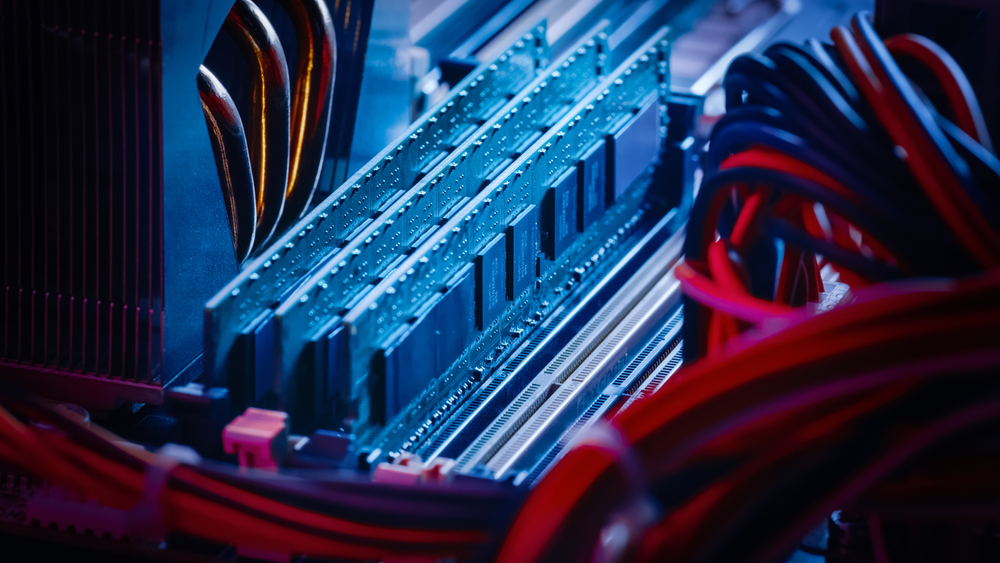
Motherboard computer memory refers to the memory modules that are directly installed on the motherboard. The motherboard plays a pivotal role in how efficiently memory interacts with the processor and other components.
Most modern motherboards come equipped with:
DIMM slots (Dual Inline Memory Modules): For desktop RAM installation.
SO-DIMM slots: Found in laptops and compact systems.
Memory controllers: These regulate the data flow between the CPU and RAM.
The compatibility of memory with the motherboard is crucial. Not all memory types are supported by every motherboard, so it's essential to check specifications such as:
Memory type (DDR3, DDR4, DDR5)
Maximum supported capacity
Memory clock speed
ECC (Error-Correcting Code) support for enterprise systems
Computer Memory and Performance Optimization
A well-optimized memory configuration enhances the overall performance of a computer. Here’s how memory impacts performance:
1. Capacity
More RAM means a computer can handle more tasks simultaneously. For general tasks, 8 GB might suffice, but for gaming, video editing, and data analysis, 16 GB or more is ideal.
2. Speed
Measured in MHz, memory speed determines how fast data can be read or written. Higher speeds mean better performance but also require CPU and motherboard compatibility.
3. Latency
Lower latency in RAM modules means less delay in executing operations. It’s crucial for real-time computing applications such as online gaming and financial modeling.
4. Dual Channel vs Single Channel
Dual channel setups increase data throughput by accessing two memory modules simultaneously. This improves bandwidth and results in faster system performance.
Evolution of Computer Memory in IT Hardware
The journey of computer memory has been revolutionary. From the early days of magnetic core memory to the high-speed DDR5 modules of today, memory technology has continually evolved to meet the increasing demands of modern computing.
Notable milestones include:
The shift from DRAM to SDRAM and DDR modules.
Introduction of non-volatile RAM technologies for persistent storage.
Growth in module capacity—from 512 MB to 128 GB in mainstream systems.
Enhanced support for ECC memory in servers for data integrity.
These advancements have made it possible for computers to handle complex tasks such as artificial intelligence, data mining, and 3D rendering with ease.
Choosing the Right Computer Memory for Your Needs
When selecting computer memory, it's important to match the memory with your computing needs and system specifications. Here are key considerations:
Desktop Users
Aim for 16 GB DDR4 or DDR5 memory for gaming and multimedia tasks.
Ensure the memory speed is compatible with your CPU.
Laptop Users
Choose SO-DIMM RAM with lower power consumption.
Upgradability is limited, so check your motherboard before purchase.
Server and Enterprise Systems
ECC memory is essential for data integrity.
Large capacities and advanced error-checking capabilities are necessary for databases and virtualization.
Memory Installation and Configuration Tips
Installing memory modules is straightforward, but some best practices ensure maximum performance:
Use matched pairs for dual-channel performance.
Update BIOS to ensure compatibility with new memory modules.
Set XMP profiles in BIOS to run RAM at rated speeds.
Avoid mixing brands and capacities, as it can lead to instability.
Common Issues and Troubleshooting in Computer Memory
Even high-quality computer memory can sometimes encounter issues. Here are common problems and their fixes:
System crashes: Could be due to faulty or incompatible RAM.
Failure to boot: Improper installation or unsupported memory type.
Sluggish performance: Insufficient RAM for the operating system or running applications.
Using memory diagnostic tools like MemTest86 can help identify faulty modules. Always ensure your computer hardware supports the installed memory type and configuration.
The Future of Computer Memory in IT Hardware
As computing demands grow, the future of computer memory is focused on increasing speed, capacity, and efficiency. Some exciting developments include:
DDR6 and LPDDR6: Promising even faster speeds and better power efficiency.
MRAM (Magnetoresistive RAM): Combines speed with non-volatility.
3D stacking: Increases density and performance in smaller footprints.
Optane memory: Intel’s attempt to bridge the gap between RAM and storage.
These innovations are shaping the next generation of computer hardware, enabling smarter, faster, and more reliable computing systems.
Computer Memory in Specialized IT Hardware
Different IT sectors have varying requirements for memory:
Cloud Computing
Requires large pools of scalable memory.
Virtual machines rely heavily on memory allocation.
Gaming Systems
Demands high-speed and high-capacity RAM.
Low latency is essential for real-time performance.
Artificial Intelligence
Needs ultra-fast memory for large-scale data processing.
Often paired with GPUs that have dedicated memory.
Mobile Devices
Utilize LPDDR memory for energy efficiency.
Optimization is crucial due to space and power limitations.
Sustainability and Energy Efficiency in Memory Design
Modern computer memory isn't just about speed and size—it's also about being eco-friendly. IT hardware manufacturers are pushing for:
Low-voltage memory modules to reduce power consumption.
Efficient memory controllers on motherboards.
Recyclable components in memory production.
Sustainable computer hardware helps reduce environmental impact while maintaining high performance standards.
Conclusion
Computer memory is a cornerstone of IT hardware and modern computing systems. It directly impacts performance, multitasking capabilities, and user experience. Whether you're upgrading a personal PC or managing enterprise-level servers, understanding the ins and outs of memory—from types and speeds to motherboard compatibility—is essential.
As technology evolves, so will computer memory, opening the doors to new possibilities in AI, gaming, cloud computing, and beyond. Staying informed about advancements in memory technology ensures you're prepared to make the best choices for your computer hardware.



