Home Upload Photo Upload Videos Write a Blog Analytics Messaging Streaming Create Adverts Creators Program
Bebuzee Afghanistan Bebuzee Albania Bebuzee Algeria Bebuzee Andorra Bebuzee Angola Bebuzee Antigua and Barbuda Bebuzee Argentina Bebuzee Armenia Bebuzee Australia Bebuzee Austria Bebuzee Azerbaijan Bebuzee Bahamas Bebuzee Bahrain Bebuzee Bangladesh Bebuzee Barbados Bebuzee Belarus Bebuzee Belgium Bebuzee Belize Bebuzee Benin Bebuzee Bhutan Bebuzee Bolivia Bebuzee Bosnia and Herzegovina Bebuzee Botswana Bebuzee Brazil Bebuzee Brunei Bebuzee Bulgaria Bebuzee Burkina Faso Bebuzee Burundi Bebuzee Cabo Verde Bebuzee Cambodia Bebuzee Cameroon Bebuzee Canada Bebuzee Central African Republic Bebuzee Chad Bebuzee Chile Bebuzee China Bebuzee Colombia Bebuzee Comoros Bebuzee Costa Rica Bebuzee Côte d'Ivoire Bebuzee Croatia Bebuzee Cuba Bebuzee Cyprus Bebuzee Czech Republic Bebuzee Democratic Republic of the Congo Bebuzee Denmark Bebuzee Djibouti Bebuzee Dominica Bebuzee Dominican Republic Bebuzee Ecuador Bebuzee Egypt Bebuzee El Salvador Bebuzee Equatorial Guinea Bebuzee Eritrea Bebuzee Estonia Bebuzee Eswatini Bebuzee Ethiopia Bebuzee Fiji Bebuzee Finland Bebuzee France Bebuzee Gabon Bebuzee Gambia Bebuzee Georgia Bebuzee Germany Bebuzee Ghana Bebuzee Greece Bebuzee Grenada Bebuzee Guatemala Bebuzee Guinea Bebuzee Guinea-Bissau Bebuzee Guyana Bebuzee Haiti Bebuzee Honduras Bebuzee Hong Kong Bebuzee Hungary Bebuzee Iceland Bebuzee India Bebuzee Indonesia Bebuzee Iran Bebuzee Iraq Bebuzee Ireland Bebuzee Israel Bebuzee Italy Bebuzee Jamaica Bebuzee Japan Bebuzee Jordan Bebuzee Kazakhstan Bebuzee Kenya Bebuzee Kiribati Bebuzee Kuwait Bebuzee Kyrgyzstan Bebuzee Laos Bebuzee Latvia Bebuzee Lebanon Bebuzee Lesotho Bebuzee Liberia Bebuzee Libya Bebuzee Liechtenstein Bebuzee Lithuania Bebuzee Luxembourg Bebuzee Madagascar Bebuzee Malawi Bebuzee Malaysia Bebuzee Maldives Bebuzee Mali Bebuzee Malta Bebuzee Marshall Islands Bebuzee Mauritania Bebuzee Mauritius Bebuzee Mexico Bebuzee Micronesia Bebuzee Moldova Bebuzee Monaco Bebuzee Mongolia Bebuzee Montenegro Bebuzee Morocco Bebuzee Mozambique Bebuzee Myanmar Bebuzee Namibia Bebuzee Nauru Bebuzee Nepal Bebuzee Netherlands Bebuzee New Zealand Bebuzee Nicaragua Bebuzee Niger Bebuzee Nigeria Bebuzee North Korea Bebuzee North Macedonia Bebuzee Norway Bebuzee Oman Bebuzee Pakistan Bebuzee Palau Bebuzee Panama Bebuzee Papua New Guinea Bebuzee Paraguay Bebuzee Peru Bebuzee Philippines Bebuzee Poland Bebuzee Portugal Bebuzee Qatar Bebuzee Republic of the Congo Bebuzee Romania Bebuzee Russia Bebuzee Rwanda Bebuzee Saint Kitts and Nevis Bebuzee Saint Lucia Bebuzee Saint Vincent and the Grenadines Bebuzee Samoa Bebuzee San Marino Bebuzee São Tomé and Príncipe Bebuzee Saudi Arabia Bebuzee Senegal Bebuzee Serbia Bebuzee Seychelles Bebuzee Sierra Leone Bebuzee Singapore Bebuzee Slovakia Bebuzee Slovenia Bebuzee Solomon Islands Bebuzee Somalia Bebuzee South Africa Bebuzee South Korea Bebuzee South Sudan Bebuzee Spain Bebuzee Sri Lanka Bebuzee Sudan Bebuzee Suriname Bebuzee Sweden Bebuzee Switzerland Bebuzee Syria Bebuzee Taiwan Bebuzee Tajikistan Bebuzee Tanzania Bebuzee Thailand Bebuzee Timor-Leste Bebuzee Togo Bebuzee Tonga Bebuzee Trinidad and Tobago Bebuzee Tunisia Bebuzee Turkey Bebuzee Turkmenistan Bebuzee Tuvalu Bebuzee Uganda Bebuzee Ukraine Bebuzee United Arab Emirates Bebuzee United Kingdom Bebuzee Uruguay Bebuzee Uzbekistan Bebuzee Vanuatu Bebuzee Venezuela Bebuzee Vietnam Bebuzee World Wide Bebuzee Yemen Bebuzee Zambia Bebuzee Zimbabwe
Blog Image

How to Turn Off the Motion Photo Feature on Android

Motion Photo is an Android camera feature that captures a short video clip along with the photo, providing a dynamic, live image experience. While this can be fun and useful, it also consumes additional storage space and may not always be necessary. Here’s a step-by-step guide to turning off the Motion Photo feature on your Android device.

Steps to Turn Off Motion Photo on Android

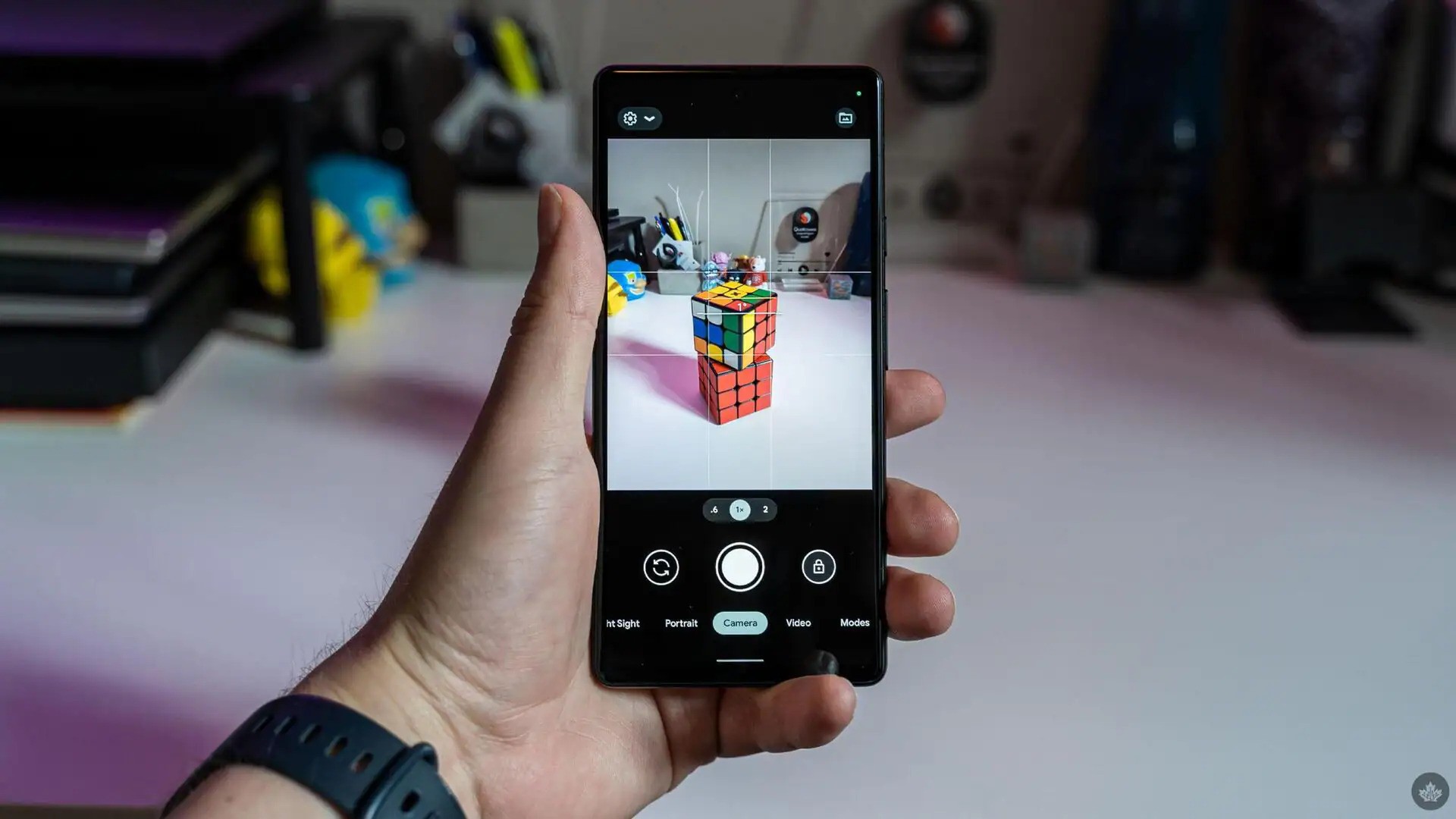
i. Open the Camera App: Launch the camera application on your Android device.

ii. Access Camera Settings:

- Look for a gear icon (⚙️) or three vertical dots (⋮) in the camera interface. This is usually located in the top or bottom corner of the screen.

- Tap on it to open the camera settings.

iii. Find Motion Photo Settings:

- Scroll through the settings menu to find the option labeled "Motion Photo," "Motion Photos," or something similar.

- Depending on your device, it may be under a section like "Advanced" or "Shooting methods."

iv. Disable Motion Photo:

- Toggle the Motion Photo option off. This may be a switch or checkbox that you need to uncheck.

v. Exit Settings: Once you have turned off the Motion Photo feature, exit the settings menu and return to the camera interface.

Additional Tips

- Check for Updates: If you don’t see the Motion Photo option, ensure your camera app is updated to the latest version, as features can vary between updates.

- Device-Specific Instructions: If you are using a specific brand (like Samsung, Google, or OnePlus), the steps may differ slightly. You can refer to the user manual or support website for your specific device for more detailed instructions.

- Test the Camera: After disabling the feature, take a few photos to ensure that Motion Photo is no longer active.

By following these simple steps, you can easily turn off the Motion Photo feature on your Android device and enjoy regular photo-taking without unnecessary storage usage.
Previous Post

Want a Great Photo of Yourself? Try These 5 Confidence-Boosting Poses

Next Post

Tips for Taking Amazing Portraits with a Smartphone

Comments