Home Upload Photo Upload Videos Write a Blog Analytics Messaging Streaming Create Adverts Creators Program
Bebuzee Afghanistan Bebuzee Albania Bebuzee Algeria Bebuzee Andorra Bebuzee Angola Bebuzee Antigua and Barbuda Bebuzee Argentina Bebuzee Armenia Bebuzee Australia Bebuzee Austria Bebuzee Azerbaijan Bebuzee Bahamas Bebuzee Bahrain Bebuzee Bangladesh Bebuzee Barbados Bebuzee Belarus Bebuzee Belgium Bebuzee Belize Bebuzee Benin Bebuzee Bhutan Bebuzee Bolivia Bebuzee Bosnia and Herzegovina Bebuzee Botswana Bebuzee Brazil Bebuzee Brunei Bebuzee Bulgaria Bebuzee Burkina Faso Bebuzee Burundi Bebuzee Cabo Verde Bebuzee Cambodia Bebuzee Cameroon Bebuzee Canada Bebuzee Central African Republic Bebuzee Chad Bebuzee Chile Bebuzee China Bebuzee Colombia Bebuzee Comoros Bebuzee Costa Rica Bebuzee Côte d'Ivoire Bebuzee Croatia Bebuzee Cuba Bebuzee Cyprus Bebuzee Czech Republic Bebuzee Democratic Republic of the Congo Bebuzee Denmark Bebuzee Djibouti Bebuzee Dominica Bebuzee Dominican Republic Bebuzee Ecuador Bebuzee Egypt Bebuzee El Salvador Bebuzee Equatorial Guinea Bebuzee Eritrea Bebuzee Estonia Bebuzee Eswatini Bebuzee Ethiopia Bebuzee Fiji Bebuzee Finland Bebuzee France Bebuzee Gabon Bebuzee Gambia Bebuzee Georgia Bebuzee Germany Bebuzee Ghana Bebuzee Greece Bebuzee Grenada Bebuzee Guatemala Bebuzee Guinea Bebuzee Guinea-Bissau Bebuzee Guyana Bebuzee Haiti Bebuzee Honduras Bebuzee Hong Kong Bebuzee Hungary Bebuzee Iceland Bebuzee India Bebuzee Indonesia Bebuzee Iran Bebuzee Iraq Bebuzee Ireland Bebuzee Israel Bebuzee Italy Bebuzee Jamaica Bebuzee Japan Bebuzee Jordan Bebuzee Kazakhstan Bebuzee Kenya Bebuzee Kiribati Bebuzee Kuwait Bebuzee Kyrgyzstan Bebuzee Laos Bebuzee Latvia Bebuzee Lebanon Bebuzee Lesotho Bebuzee Liberia Bebuzee Libya Bebuzee Liechtenstein Bebuzee Lithuania Bebuzee Luxembourg Bebuzee Madagascar Bebuzee Malawi Bebuzee Malaysia Bebuzee Maldives Bebuzee Mali Bebuzee Malta Bebuzee Marshall Islands Bebuzee Mauritania Bebuzee Mauritius Bebuzee Mexico Bebuzee Micronesia Bebuzee Moldova Bebuzee Monaco Bebuzee Mongolia Bebuzee Montenegro Bebuzee Morocco Bebuzee Mozambique Bebuzee Myanmar Bebuzee Namibia Bebuzee Nauru Bebuzee Nepal Bebuzee Netherlands Bebuzee New Zealand Bebuzee Nicaragua Bebuzee Niger Bebuzee Nigeria Bebuzee North Korea Bebuzee North Macedonia Bebuzee Norway Bebuzee Oman Bebuzee Pakistan Bebuzee Palau Bebuzee Panama Bebuzee Papua New Guinea Bebuzee Paraguay Bebuzee Peru Bebuzee Philippines Bebuzee Poland Bebuzee Portugal Bebuzee Qatar Bebuzee Republic of the Congo Bebuzee Romania Bebuzee Russia Bebuzee Rwanda Bebuzee Saint Kitts and Nevis Bebuzee Saint Lucia Bebuzee Saint Vincent and the Grenadines Bebuzee Samoa Bebuzee San Marino Bebuzee São Tomé and Príncipe Bebuzee Saudi Arabia Bebuzee Senegal Bebuzee Serbia Bebuzee Seychelles Bebuzee Sierra Leone Bebuzee Singapore Bebuzee Slovakia Bebuzee Slovenia Bebuzee Solomon Islands Bebuzee Somalia Bebuzee South Africa Bebuzee South Korea Bebuzee South Sudan Bebuzee Spain Bebuzee Sri Lanka Bebuzee Sudan Bebuzee Suriname Bebuzee Sweden Bebuzee Switzerland Bebuzee Syria Bebuzee Taiwan Bebuzee Tajikistan Bebuzee Tanzania Bebuzee Thailand Bebuzee Timor-Leste Bebuzee Togo Bebuzee Tonga Bebuzee Trinidad and Tobago Bebuzee Tunisia Bebuzee Turkey Bebuzee Turkmenistan Bebuzee Tuvalu Bebuzee Uganda Bebuzee Ukraine Bebuzee United Arab Emirates Bebuzee United Kingdom Bebuzee Uruguay Bebuzee Uzbekistan Bebuzee Vanuatu Bebuzee Venezuela Bebuzee Vietnam Bebuzee World Wide Bebuzee Yemen Bebuzee Zambia Bebuzee Zimbabwe
Blog Image

Cleanup.pictures: How to Easily to Remove Objects From Your Photos

Removing unwanted objects and text out of an image to clean up your photo used to require special software and skills, but these days AI has led to features like Content-Aware Fill in Photoshop that lets anyone do it in just a few clicks. If you do not have a Photoshop subscription, there is a free Web and mobile app called Cleanup.pictures you can use.

This article is a step-by-step tutorial on how you can use Cleanup.pictures to effortlessly remove things like objects, defects, people, and text from a photo for free with just a few clicks.

An Introduction to Cleanup.pictures

In photography, there’s a careful balance between the elements that you want in your image and the elements that you want to leave out. Growing your photography skills requires attention to this balance, but it’s not always possible to achieve your desired composition. There are often unavoidable artifacts, such as people or background objects, that distract from the image’s main intent. Luckily, there are powerful tools such as Cleanup.pictures to help post-process these images.

Cleanup.pictures is, at a basic level, a free website and app that enables you to remove elements from an image. The website is accessible by visiting “Cleanup.pictures” using a search engine, and the feature is available in the iOS app ClipDrop.

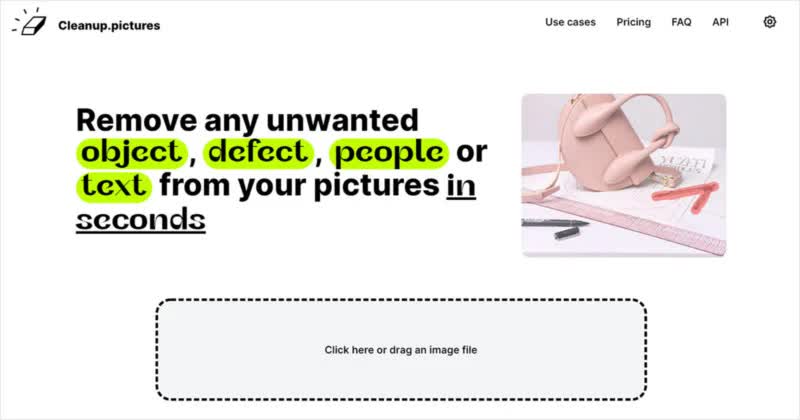
When you first visit the website, the tool’s ease of use is clear. If you want to get started right away, you can simply upload an image from the site’s home screen by dragging and dropping or searching your files.
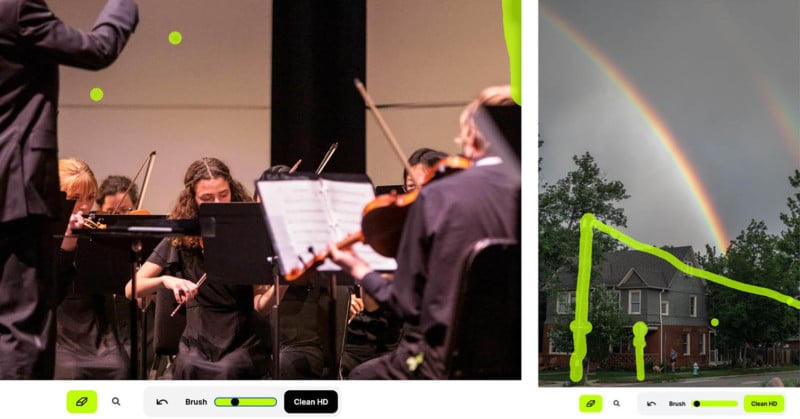

If you don’t have an image but you still want to test its functionality, Cleanup.pictures has a few example images available for you to test with. The app is similar in its simplicity, and it is packed with quick, powerful removal features.

A Powerful Freemium Tool for Object Removal

The free version of Cleanup.pictures currently has no limit on the number of images, and export resolutions are limited to 720px on the longest side. This is suitable for some social media platforms, but not suitable for print at reasonable dimensions with today’s printer resolutions.

The paid (Pro) version is $48 per year or $5 per month, though you can sometimes (such as at the time of this writing) find it on sale for $24 per year. This has no limit on the number of images, no resolution limit, and provides access to a high-quality refiner.

If you’d like to try Pro on your own images, there is currently a two-week free trial available.

Read on for step-by-step guides on how to use both versions of Cleanup.pictures to remove unwanted elements of an image.

How To Use the Cleanup.pictures Web App

Let us see how the Web app can be used to remove the white fence from this landscape photo:
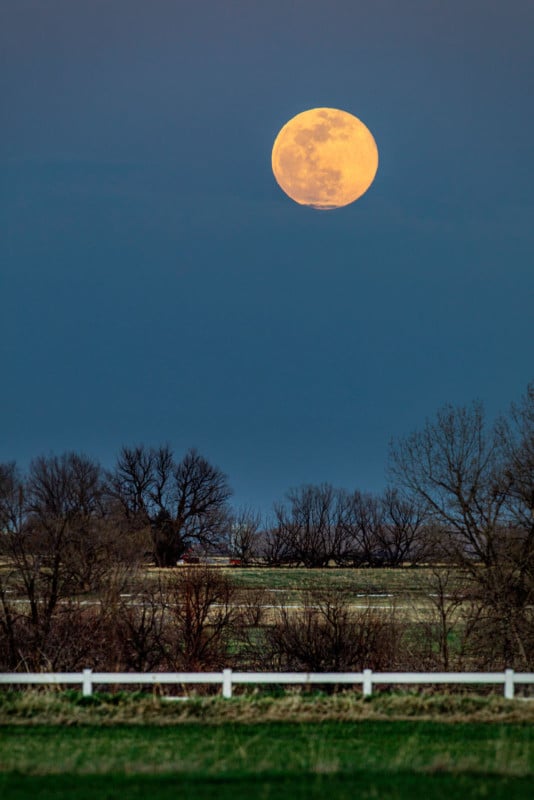
Step 1. Visit the easy-to-remember URL Cleanup.pictures (or search for “cleanup pictures” using a search engine if you forget).

Step 2. Look for the box that says “Click here or drag an image file.” Use this to upload your desired image.

Step 3. Once you’ve uploaded your image, the brush module will open. From here, you can change the size of your brush, zoom in to refine smaller objects, see before & after versions, and toggle between high definition (Pro) modes and the standard definition. Read More...
Previous Post

Creating Cosplay and Superhero Inspired Photo Portraits

Next Post

How to Use the Zone System in Photography

Comments