How to Fix a Pixelated Image in Photoshop Using JPEG Artifacts Removal
-
 Loading...
 - Liam Bakker
- 19 Jan 2023
- 81 Views
- 0 Like
- 0 Comment
Photoshop's JPEG Artifacts Removal tool will fix your pixelated images in no time.
If you've ever lost an original file (or never had it to begin with) and were only left with a very small and pixelated JPEG image, it can be quite frustrating.
In this tutorial, we'll show you how to fix a pixelated JPEG image using a Neural Filter in Photoshop, JPEG Artifacts Removal. We'll also show you how to enlarge the image to make it sharable and how to take care of stubborn pixels using the Clone Stamp tool. Let's get started.
Neural Filters to the Rescue: JPEG Artifacts Removal
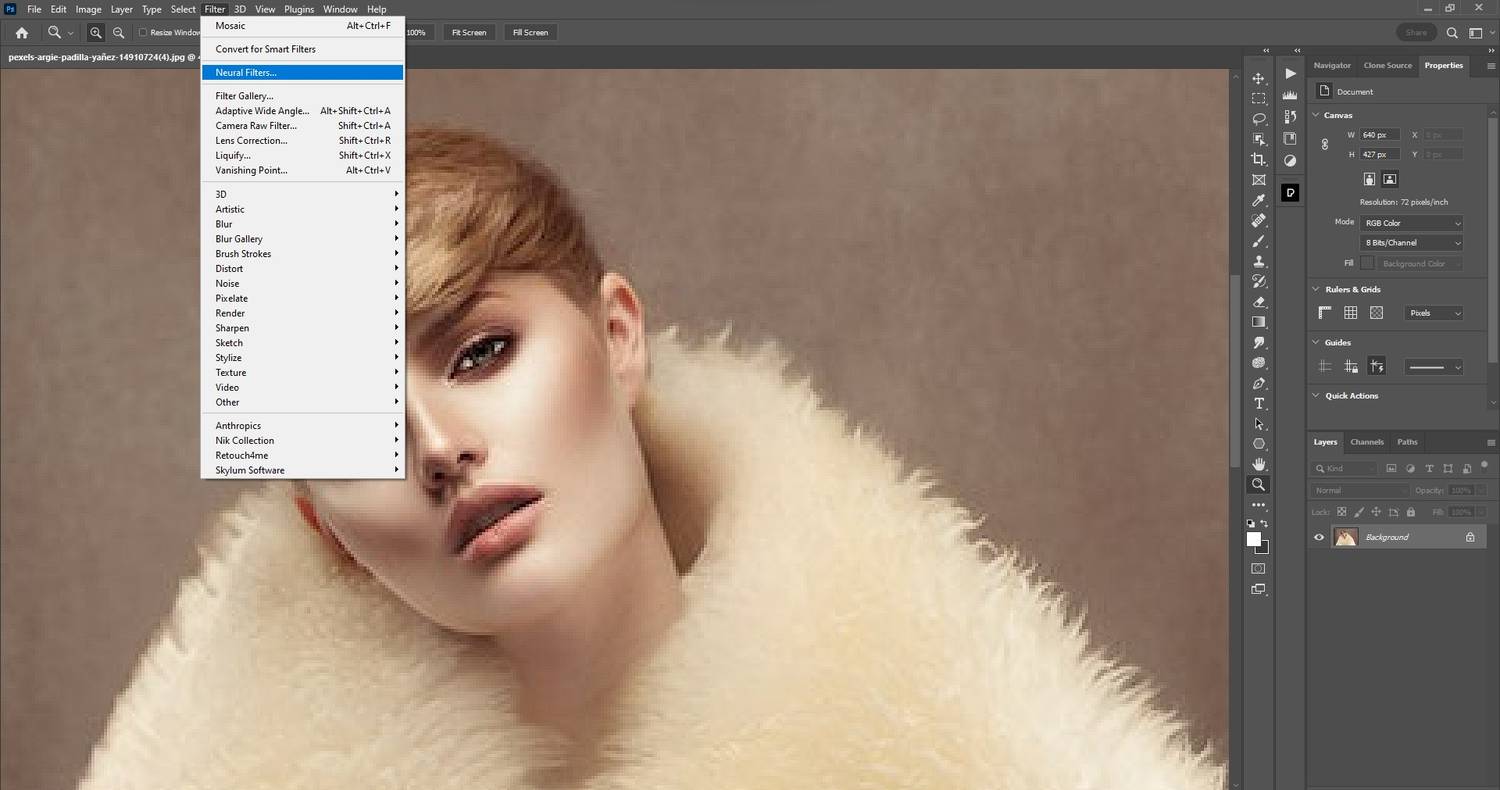
Photoshop has a set of Neural Filters located under the Filter tab that make use of artificial intelligence to perform complex photo editing tasks. The JPEG Artifacts Removal Neural Filter is the one designated to remove pixelation from JPEG images.
If you want to see how this feature works but don't have a pixelated image, we show you how to pixelate someone's face in Photoshop.
1. How to Enlarge Your JPEG File in Photoshop
There's usually at least one other issue associated with pixelated images, and that's a very small file size. For the first step in removing JPEG artifacts, we're going to use a 640 x 427 JPEG image of a portrait and increase the resolution to 3,000 pixels on the long side. Read More…