How to Set the Timer on Your iPhone Camera
-
 Loading...
 - Damyan Marinova
- 23 Sep 2022
- 70 Views
- 0 Like
- 0 Comment
The iPhone has a built-in timer feature that can snap a picture a few seconds after the shutter button is pressed. This can be very helpful when you want to be in the photo and need the full quality and all of the options available when using the rear cameras. The front-facing camera isn’t bad but doesn’t capture as much light and that often results in a photo that’s a bit flatter and softer.
The built-in timer is somewhat limited but there are other ways to tell the iPhone to delay before taking a photo or recording a video. There are multiple ways to remotely trigger a photo or video and some don’t need additional hardware. Read on for a thorough exploration of the best ways to activate the shutter without tapping the on-screen button or pressing the volume rocker.
Table of Contents
How to Use the iPhone’s Built-In Photo Timer
Does the iPhone Camera Timer Work for Video and Portrait Mode?
Use Shortcuts to Make a Timer for iPhone Video
An Automation for Scheduled Photos and Recordings
Third-Party Camera Timer Apps
Voice Control of the Camera App
Bluetooth Remote Shutter Devices
What About Time-Lapse Videos?
How to Use the iPhone’s Built-In Photo Timer
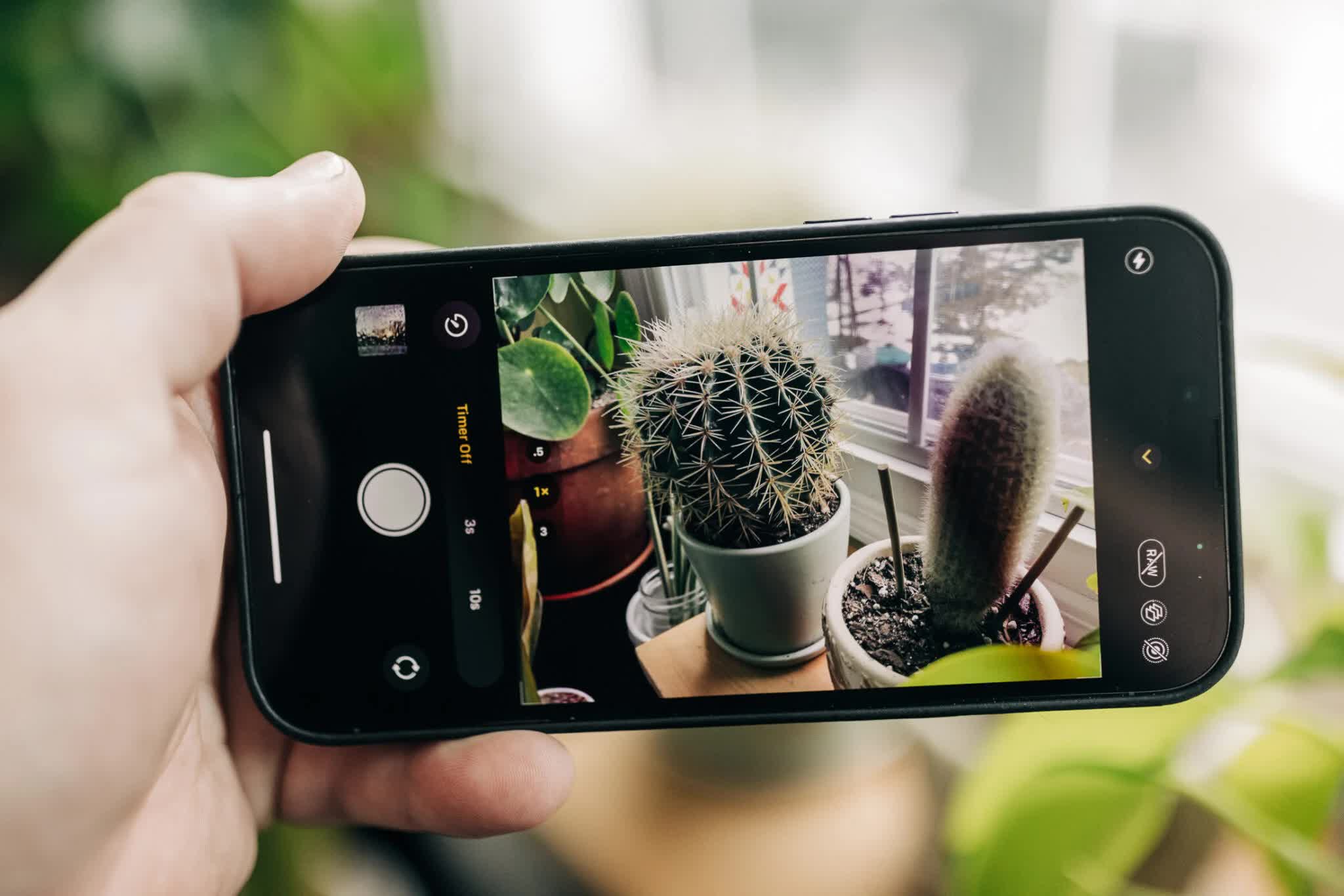
The iPhone has a built-in photo timer that is simple yet effective enough to serve your needs in most cases. To use it, simply open the camera app and swipe up from the center of the screen (away from the shutter button if in landscape mode) to open camera controls. Alternatively, you can tap the upward arrow that looks like a circumflex (^ symbol) at the top of the iPhone to see the same controls. Read More...