How to use Google Docs Pageless format
-
 Loading...
 - Bradan Moran
- 11 May 2023
- 98 Views
- 0 Like
- 0 Comment
Google Docs is a powerful tool for creating and sharing documents. However, it can be frustrating when you want to create a document that doesn't fit neatly into a traditional page layout. That's where Google Docs Pageless format comes in! With Pageless format, you can create a more flexible and visually appealing document that better suits your needs. In this article, we'll take you through the steps of how to use Google Docs Pageless format.
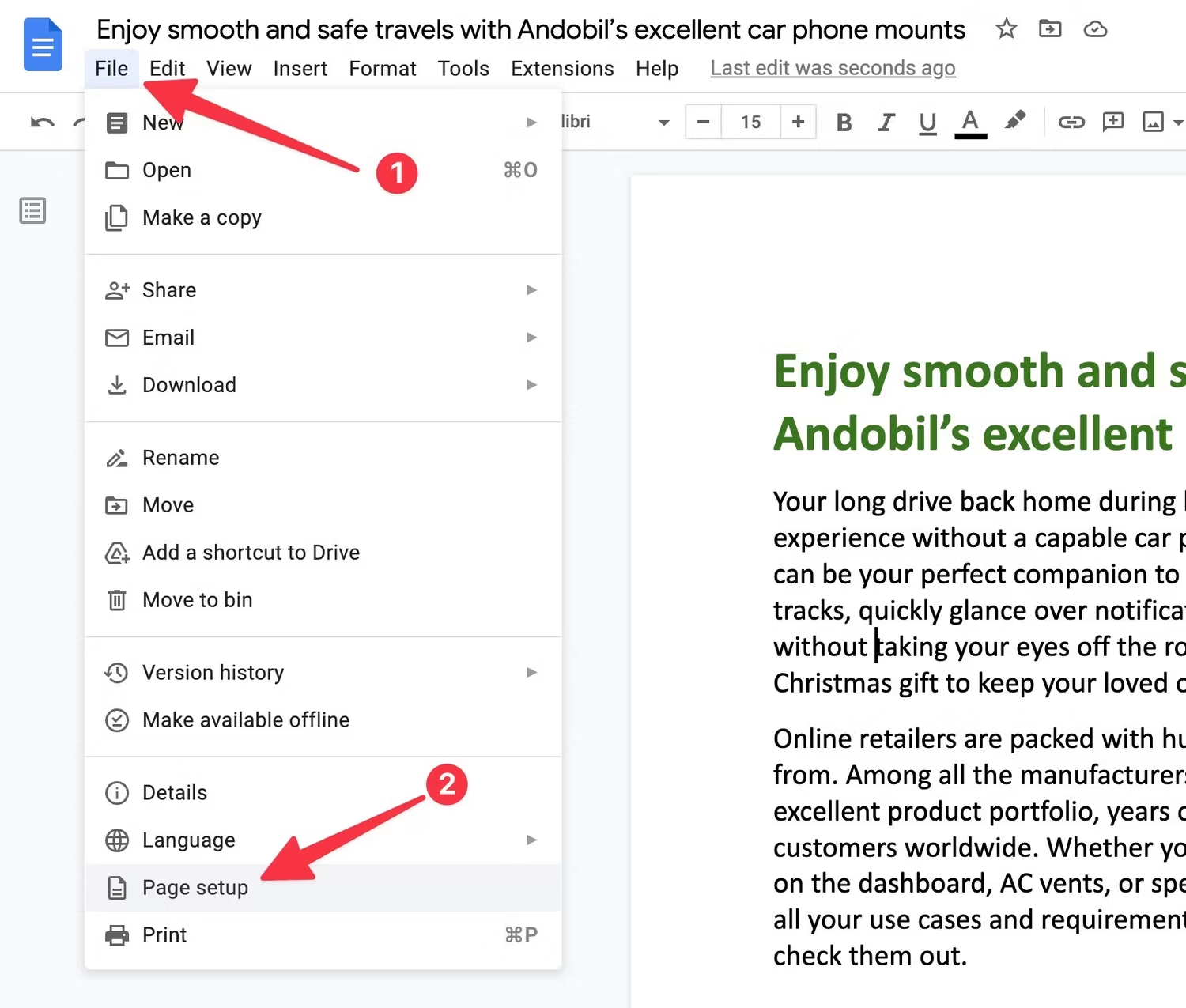
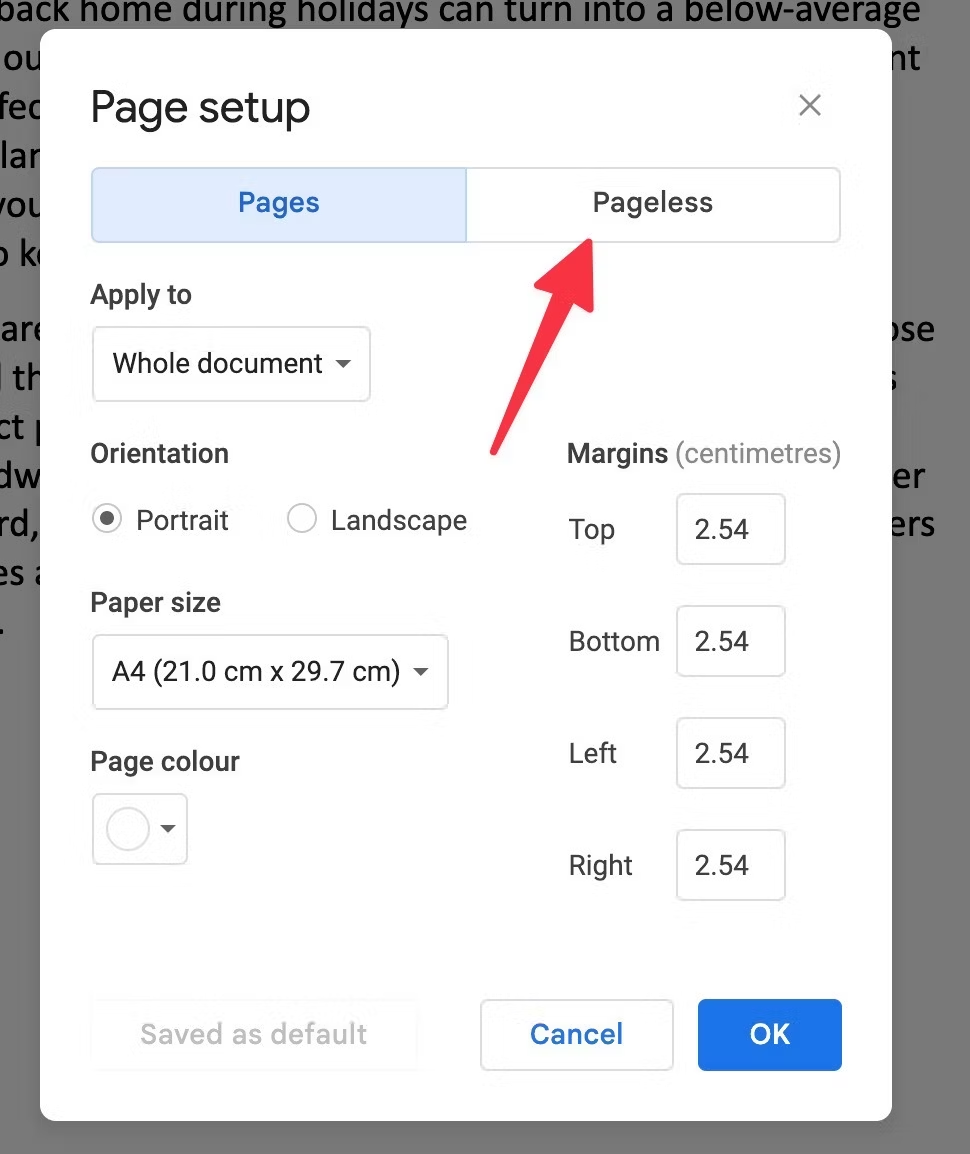
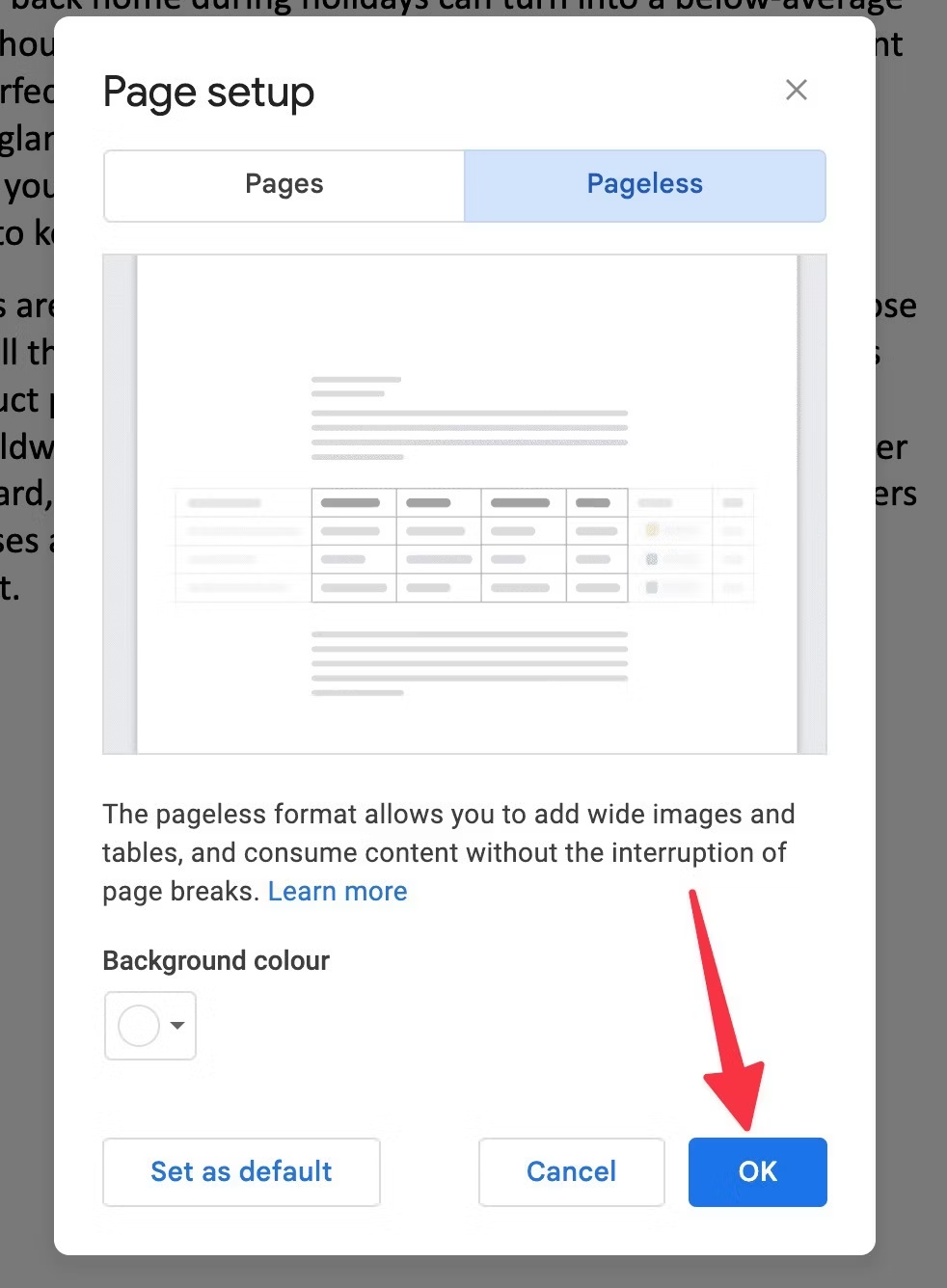
To use Google Docs Pageless format, follow these simple steps:
- Open a new or existing Google Docs document.
- Click on "File" in the top left corner of the screen.
Select "Page setup" from the drop-down menu.
In the "Page setup" dialog box, click on the "Paper size" drop-down menu.
- Select "Custom" at the bottom of the menu.
- In the "Custom page size" dialog box, enter your desired dimensions for the page.
- Click "OK" to apply the custom page size to your document.
Congratulations! You have now set up your Google Docs document to use Pageless format. You can now create your document without the limitations of a traditional page layout.
Benefits of using Google Docs Pageless format
Using Google Docs Pageless format offers several benefits over traditional page layouts:
- Increased flexibility: With Pageless format, you can create a document that is not limited by the constraints of a traditional page layout. This allows you to be more creative and create documents that better suit your needs.
- Visual appeal: Pageless format allows you to create a more visually appealing document. By using different shapes, sizes, and layouts, you can create a document that is more engaging and easier to read.
- Easy sharing: Documents created in Pageless format are easy to share with others. You can easily send your document as a link or attachment, and anyone with a Google account can view and edit the document.
Tips for using Google Docs Pageless format
To get the most out of Google Docs Pageless format, keep these tips in mind:
- Plan your layout: Before you start creating your document, think about the layout you want to use. Sketch out a rough draft or create a mockup to help you visualize your ideas.
- Use shapes and images: Pageless format allows you to add shapes and images to your document. Use these elements to create a more visually appealing and engaging document.
- Experiment with layouts: Don't be afraid to try different layouts to see what works best for your document. You can easily move and resize elements in Pageless format, so it's easy to experiment with different designs.
FAQ
Q: Can I change the page size of an existing Google Docs document to use Pageless format?
A: Yes, you can change the page size of an existing document by following the same steps as for a new document. Just click on "File" in the top left corner of the screen, select "Page setup" from the drop-down menu, and then follow the steps to set a custom page size.