How to Make Your Portraits Look Vintage in Photoshop
-
 Loading...
 - Mensah Oteng
- 17 Aug 2022
- 65 Views
- 0 Like
- 0 Comment
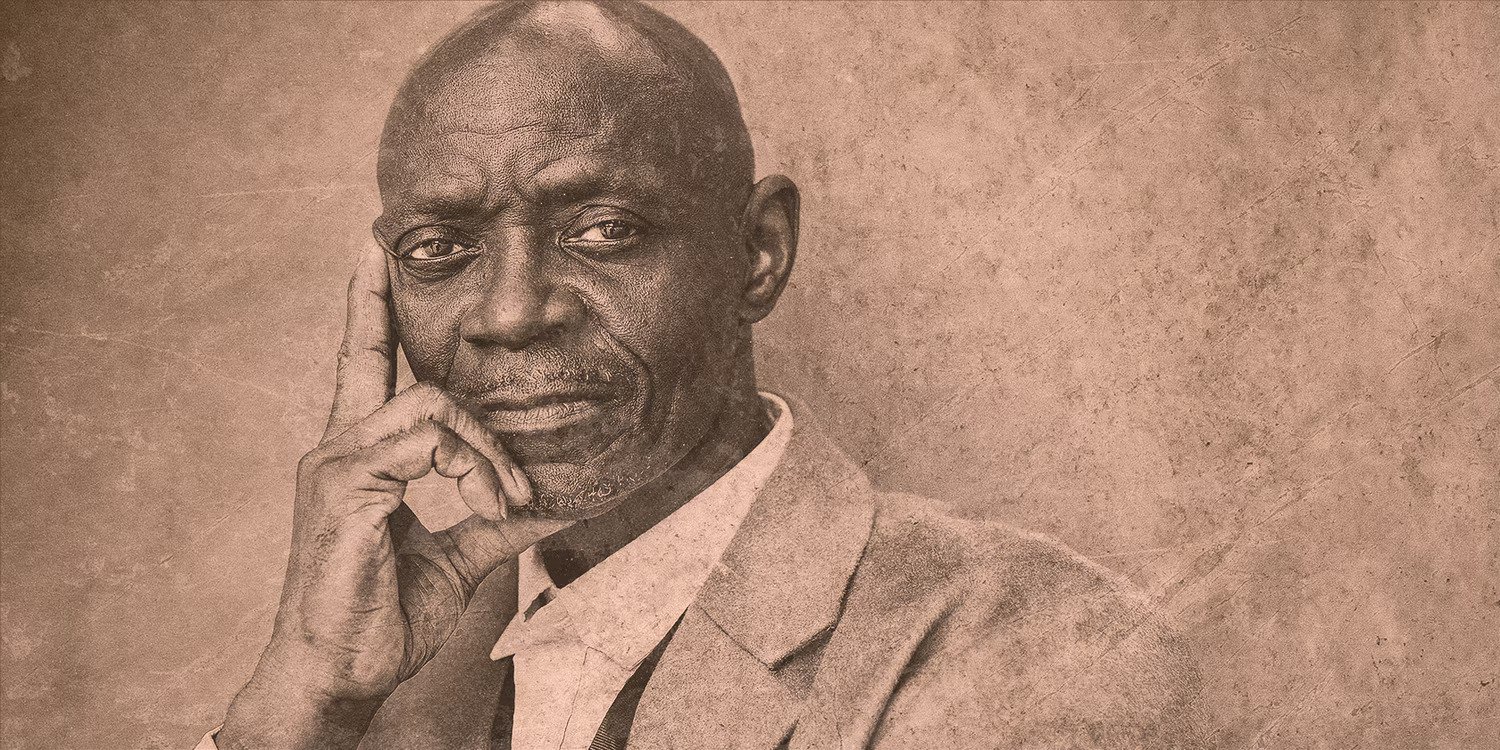
Have you ever wanted to create a vintage aesthetic that looks like the real thing? If you want to go beyond what smartphone filters are capable of, we'll show you how to transform your portraits into vintage photos using Photoshop. Let's get started.
What You Need to Make Your Photo Look Vintage
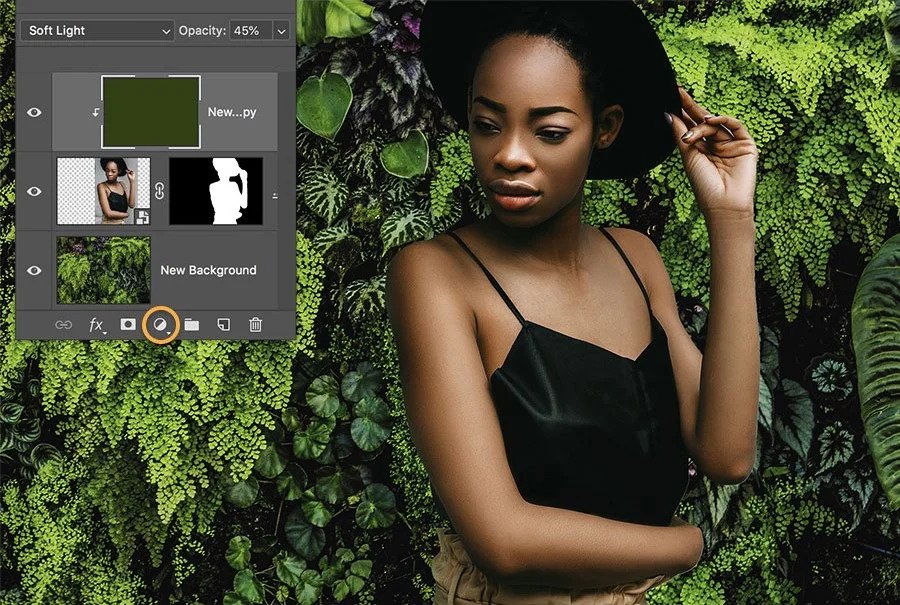
You need two basic elements to make your photo look vintage, or very old. First, you need the main picture. The most common type of vintage photo is a portrait, which is what we’ll be working with.
The second element you need is texture. Usually, this will consist of two or more different texture files. In our tutorial, we will use four different textures.
The selection of the textures is important for our vintage look. You’ll need two dark texture files and two light gray ones. It’s important that these textures are mostly desaturated or contain very low amounts of color (you can easily remove the color if you have to).
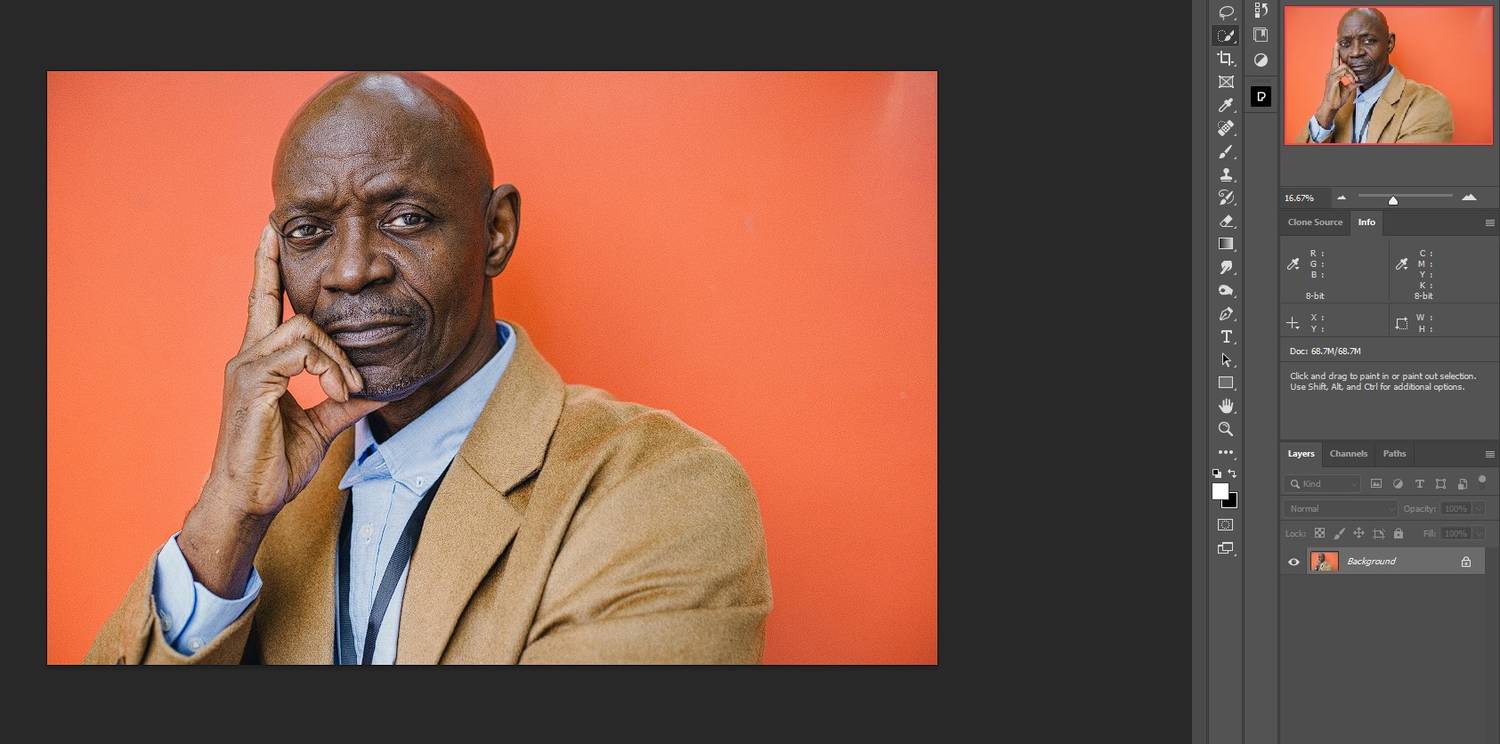
If you want to follow along, you can download the example portrait from Pexels, and you can download textures 1, 2, 3, and 4, all from Unsplash. You don’t need these exact textures to make a vintage photo. There are countless textures that you can use, it just depends on the look that you’re going for. Read More...