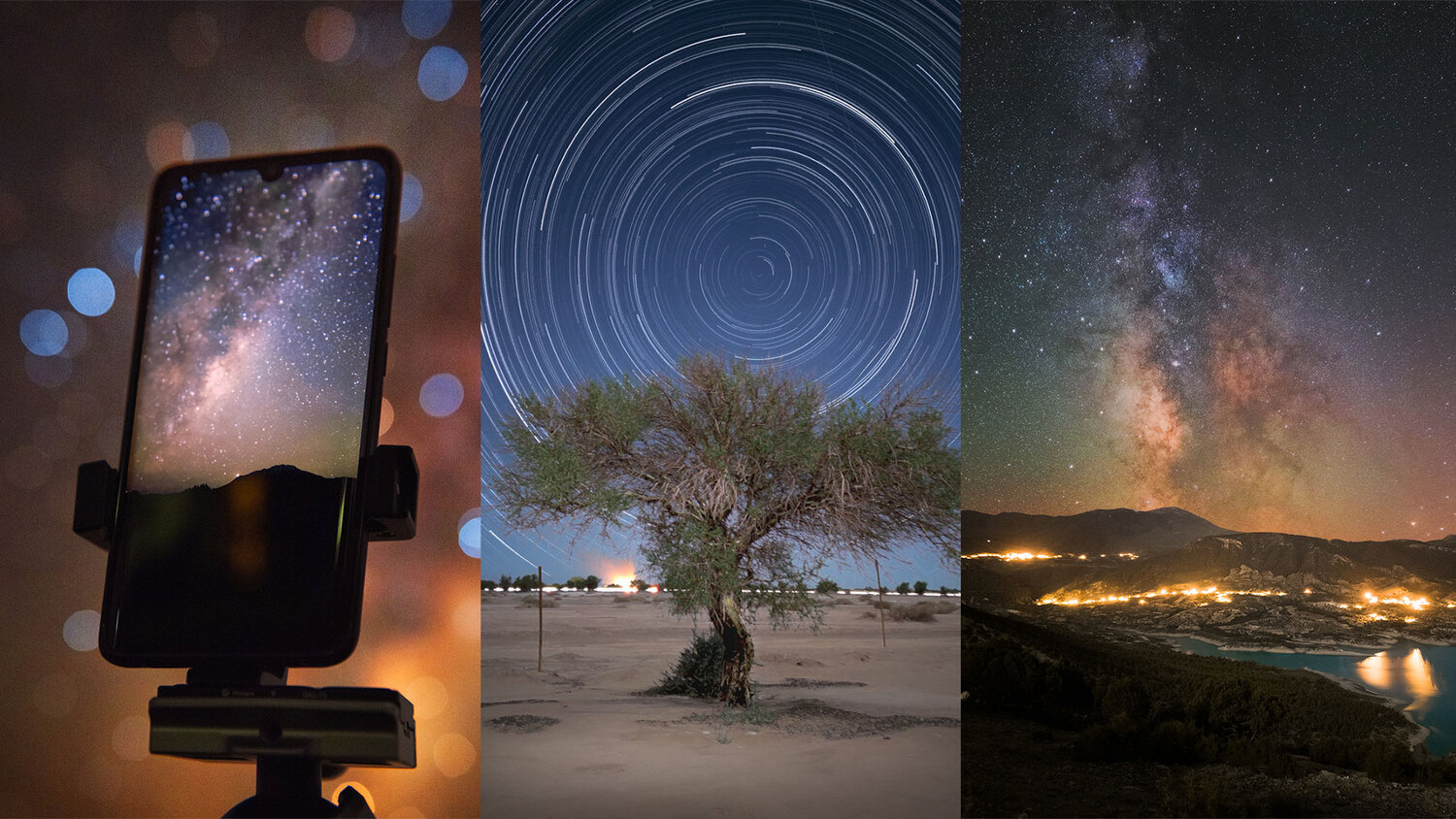
How to get the best astrophotography results with the Google Pixel
-
 Loading...
 - Adric Fosu
- 06 Jun 2023
- 50 Views
- 0 Like
- 0 Comment
Capturing stunning astrophotography shots with your Google Pixel is an art that requires patience, practice, and a solid understanding of the camera's capabilities. Here are some key steps to help you achieve the best results:
Understanding Night Sight Mode: The Google Pixel's Night Sight mode is designed to capture sharp and well-exposed images in low-light conditions. It uses advanced computational photography techniques to enhance details and reduce noise. When shooting astrophotography, Night Sight mode can be your best friend.
To enable Night Sight mode, open the camera app and swipe to the Night Sight option. Keep in mind that Night Sight mode works best when there is minimal movement in the frame. Use a tripod or stabilize your phone on a steady surface to avoid blurriness.
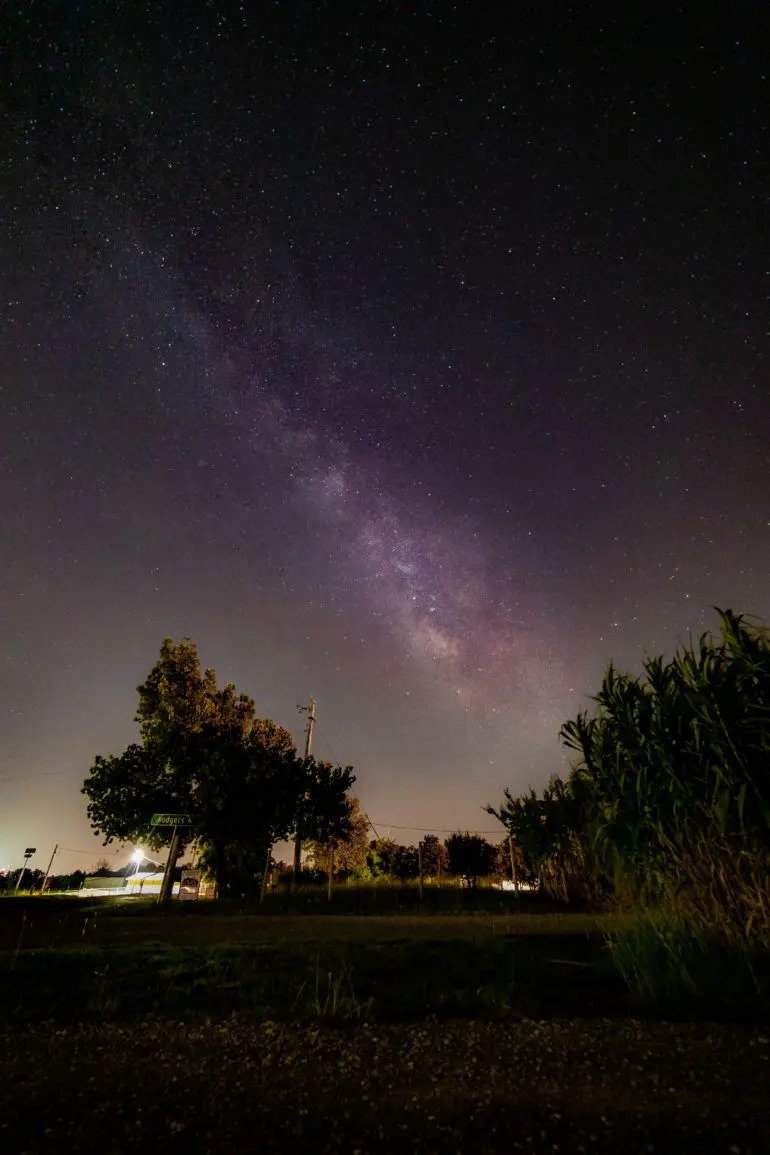
Enabling Astrophotography Mode: For truly breathtaking shots of the night sky, the Google Pixel introduces Astrophotography mode. This mode enables you to capture the celestial wonders with long exposure times, revealing intricate details of stars, planets, and even the Milky Way.
Astrophotography mode is automatically triggered when the camera detects a dark scene and the phone is stabilized. Once enabled, your Google Pixel will capture a series of images over several seconds, combining them to create a stunning final result. Keep in mind that you'll need to keep your phone still during the capture process.
Adjusting Exposure and Focus: While Night Sight and Astrophotography mode work wonders, adjusting the exposure and focus manually can elevate your astrophotography game further. To adjust the exposure, tap on the screen and drag the exposure slider up or down to brighten or darken the image.
For precise focusing, tap on the part of the frame where you want to set the focus. If you're shooting the night sky, tap on a bright star or a distant light source to ensure optimal focus. The Google Pixel's autofocus system is highly capable, but manual adjustments can sometimes be necessary in low-light conditions.
Leveraging HDR+ and Super Res Zoom: The Google Pixel's HDR+ technology enhances dynamic range and details in your images. It intelligently combines multiple exposures to create a well-balanced photo. When shooting astrophotography, enabling HDR+ can help retain details in the shadows and highlights, bringing out the nuances of the night sky.
Super Res Zoom, another powerful feature of the Google Pixel, allows you to zoom in without losing significant details. While it may not be as useful for capturing the entire night sky, it can be handy for zooming in on specific celestial objects, such as the moon or planets.
Using Night Sight with Light Sources: The Google Pixel's Night Sight mode is not only for capturing the night sky—it can also create stunning shots when combined with light sources. If you're shooting astrophotography near a light source, such as a city skyline or a bonfire, Night Sight mode can balance the exposure beautifully, resulting in captivating images.
Experiment with different light sources and their effects on your astrophotography shots. Incorporating light into your compositions can add depth, contrast, and a unique visual appeal.
Long Exposure Techniques: While the Google Pixel's Astrophotography mode already utilizes long exposure times, you can push the boundaries further by experimenting with manual long exposures. This technique allows you to capture star trails, where the apparent motion of the stars forms beautiful arcs across the sky.
To capture star trails, switch to manual mode or use a third-party camera app that supports long exposures. Set your exposure time to several minutes or more, depending on the effect you want to achieve. Stabilize your phone on a tripod and ensure that the scene is clear of any foreground objects that might cause unwanted motion blur.
Remember, astrophotography is an art form, and the best results come from experimentation and exploration. Embrace the unique characteristics of your Google Pixel and let your creativity soar amidst the cosmos.
Composition Techniques for Stellar Shots
Achieving visually appealing astrophotography shots involves more than just pointing your camera at the night sky. Thoughtful composition can transform a good shot into an extraordinary one. Here are some composition techniques to enhance your stellar shots:
Framing Your Shot: Consider the elements in the foreground and background when framing your astrophotography shot. Look for natural features, such as trees, mountains, or bodies of water, that can add depth and context to your image.
Experiment with different angles and perspectives to find the most compelling composition. Sometimes, a slight change in positioning can make a significant difference in the overall impact of the shot.
Incorporating Landscapes and Foreground Elements: Don't limit yourself to capturing just the night sky. Including interesting landscapes or foreground elements in your astrophotography shots can create a sense of scale and add visual interest.
Look for unique objects or structures that can serve as focal points in your composition. Silhouettes of trees, buildings, or even people can create captivating contrast against the backdrop of the night sky.
Utilizing the Rule of Thirds: The rule of thirds is a tried-and-true composition technique that can enhance the visual appeal of any photograph. Divide your frame into a 3x3 grid, and position key elements of your shot along the gridlines or at their intersections.
When shooting astrophotography, consider placing the brightest stars or celestial objects along the gridlines or at the intersections. This can create a balanced composition that draws the viewer's eye to the captivating features of the night sky.
Experiment with these composition techniques while keeping in mind the unique characteristics of astrophotography. Let your creative vision guide you as you capture the celestial wonders with your Google Pixel.
Post-Processing Your Astrophotography Masterpieces
The process of astrophotography doesn't end when you click the shutter button. Post-processing plays a crucial role in enhancing the beauty and impact of your images. With the Google Pixel, you have access to powerful editing tools that can help you transform your astrophotography masterpieces. Here are some post-processing tips:
Google Photos Editing Tools: Google Photos offers a range of editing tools that can elevate your astrophotography shots. After capturing your image, open it in the Google Photos app and tap on the editing icon.
Experiment with the various editing options, such as brightness, contrast, and saturation, to enhance the overall look of your astrophotography shot. Remember to make subtle adjustments and preserve the natural aesthetics of the night sky.
Third-Party Apps for Advanced Editing: If you prefer more advanced editing capabilities, consider using third-party apps that cater to astrophotography enthusiasts. Apps like Snapseed, Adobe Lightroom Mobile, or VSCO provide a wide range of editing tools and filters specifically designed for fine-tuning astrophotography shots.
Explore different editing techniques, such as noise reduction, sharpening, or adjusting the color balance, to bring out the intricate details and beauty of the night sky. Be mindful of preserving the natural appearance of the stars and other celestial objects.
Remember, post-processing is a personal choice, and there's no right or wrong way to edit your astrophotography shots. Trust your artistic instincts and experiment with different editing styles to create the final image that resonates with your vision.
Common Challenges in Astrophotography with the Google Pixel
As with any form of photography, astrophotography comes with its own set of challenges. Understanding and overcoming these challenges can significantly improve your results. Here are some common hurdles you may encounter:
Dealing with Noise and Grain: Shooting in low-light conditions can lead to increased noise and grain in your astrophotography shots. To minimize these artifacts, it's crucial to keep your exposure times as short as possible while maintaining proper exposure.
Additionally, post-processing techniques such as noise reduction can be applied to reduce noise without sacrificing the details in your image. Experiment with different noise reduction tools and find the balance that works best for your astrophotography shots.
Handling Low Light Conditions: The absence of sufficient ambient light can make it challenging to focus and compose your astrophotography shots. Utilize the Google Pixel's Night Sight mode or consider using a flashlight to assist with focusing on a distant light source.
Patience and practice are key when dealing with low-light conditions. Take your time to adjust the camera settings, compose your shot, and ensure proper focus before capturing the image.
Overcoming Lens Flare: Lens flare occurs when unwanted light enters the camera lens and creates unwanted artifacts, such as streaks or spots, in the image. To minimize lens flare during astrophotography, avoid shooting directly towards bright light sources, such as streetlights or the moon.
Consider using lens hoods or shading the lens with your hand to block any stray light that may cause lens flare. If lens flare does occur, you can try removing it during post-processing using specialized tools or by adjusting the contrast and exposure.
Addressing Star Trails: While capturing star trails can create stunning effects, capturing pin-sharp stars without trails may be your goal in certain astrophotography scenarios. To achieve this, you'll need to use shorter exposure times or utilize star tracking mounts that compensate for the Earth's rotation.
Experiment with different exposure times and settings to find the perfect balance between capturing the motion of the stars and maintaining sharpness.
By understanding these challenges and employing the appropriate techniques, you can overcome the hurdles and produce breathtaking astrophotography results with your Google Pixel.
Frequently Asked Questions (FAQs)
Can I capture deep sky objects with the Google Pixel? Yes, while the Google Pixel's camera is primarily designed for landscape and night sky photography, you can capture certain deep sky objects, such as the Andromeda Galaxy or the Orion Nebula. However, keep in mind that the limited focal length and sensor capabilities of a smartphone camera may restrict the level of detail you can capture.
How long should I expose my shots for astrophotography? The ideal exposure time for astrophotography can vary depending on the conditions and the effect you want to achieve. In general, shorter exposures of a few seconds to a few minutes are recommended to capture sharp stars. Experiment with different exposure times to find the right balance between capturing enough light and avoiding star trails.
Do I need a telescope for astrophotography with the Google Pixel? No, a telescope is not necessary for astrophotography with the Google Pixel. The smartphone's camera is capable of capturing stunning shots of the night sky without additional equipment. However, if you're interested in capturing detailed images of planets or deep sky objects, you may consider attaching your Google Pixel to a telescope using specialized adapters.
Which Google Pixel model has the best astrophotography capabilities? The Google Pixel lineup, starting from the Pixel 3 and onwards, introduced advanced astrophotography capabilities. Each subsequent model has further improved low-light photography, making the Pixel 6 Pro the most advanced option for astrophotography at the time of writing.
Is a higher megapixel count better for astrophotography? While a higher megapixel count can theoretically capture more detail, the pixel size and quality of the sensor are equally important factors. The Google Pixel series strikes a balance between megapixel count and sensor quality, resulting in excellent astrophotography capabilities despite not having the highest megapixel counts.
Can I use external lenses with the Google Pixel for astrophotography? Yes, external lenses can be used with the Google Pixel to enhance your astrophotography capabilities. There are various lens attachments available in the market, such as wide-angle or telephoto lenses, which can expand the range of compositions and capture more detailed shots of celestial objects.
With the Google Pixel as your astrophotography companion, you have the power to capture the celestial wonders in ways you never thought possible. By understanding the camera's features, mastering composition techniques, and leveraging post-processing tools, you can elevate your astrophotography game and create breathtaking images of the night sky.
Remember to experiment, embrace the challenges, and let your creative vision guide you. Whether you're capturing the Milky Way, the moon, or distant galaxies, the Google Pixel has the potential to unlock your astrophotography potential.
So grab your Google Pixel, venture out into the night, and let the cosmos unfold before your lens.