Soft Proofing Your Photos to Get the Most From Your Printer
-
 Loading...
 - Valeria Barrera
- 03 Jun 2022
- 272 Views
- 0 Like
- 0 Comment
As photographers, one of the most exciting parts of our job is to print the fantastic photos we capture. As eager as we are to get the prints, we need to ensure we follow the entire pre-printing process to the T to ensure you have realistic prints. One crucial step in the process is soft proofing.
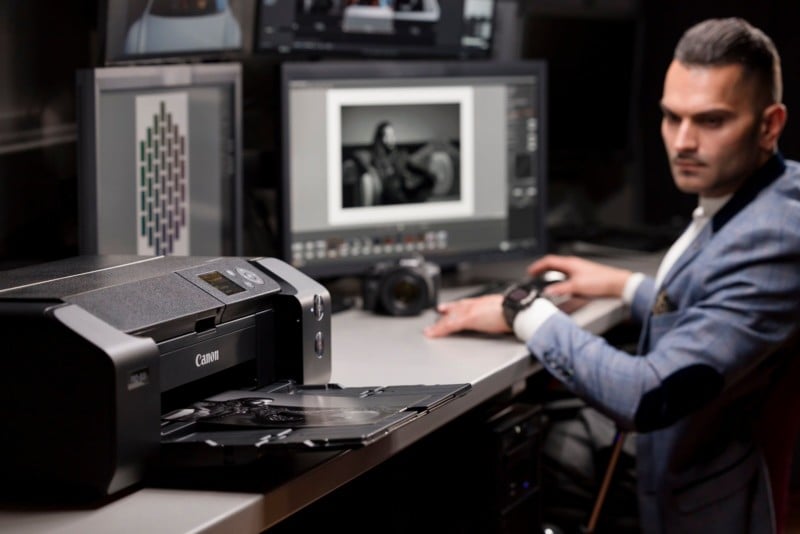
What is Color Management?
Two critical stages of color management are calibration of the monitor and using the correct printer profile. Color management aims to align your devices, from capture to viewing to print, to maintain consistent, correct color across all your devices.
Calibrating your monitor is one of the essential tasks you need to consider when preparing your images for printing. When you calibrate a monitor, you balance and correct its colors. You can easily calibrate your monitor with the help of a spectrometer and sound, reliable calibration software. On the other hand, using a printer profile instructs your printer on how it should interpret the colors by understanding the medium the ink prints on. When your printer accurately interprets colors within a printable color space, it can replicate them perfectly.
Understanding Color Space and Why it’s Important
Color space is the range of colors that a device (such as a monitor or printer) can display or print. Typically, color space is expressed in Adobe RGB (1998) or sRGB. These abbreviations stand for the colors used in printing – so RGB is Red, Green, and Blue. The greater the color space, the more gamut the device can replicate.
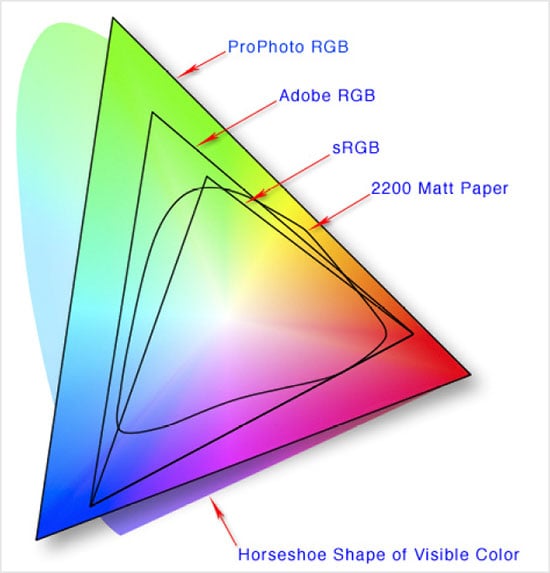
If you view a colorful photo with a large color space, such as ProPhoto RGB, and send it to a printer only capable of producing a smaller sRGB color space, the colors won’t match from screen to print. In this scenario, the vivid colors in a photo may only appear dull as the printer lacks the ink and color space information to replicate the colors. The printer essentially finds the closest color at the top of its gamut as a near match as it’s unable to print beyond its color space. Hence, it’s essential to consider how you output your photo (jpeg or TIFF and what color profile you might assign) plus the printer’s color space before printing images.
Aren’t All Printers The Same?
The short answer is no. Printers have varying features which contribute to their price points. A cheaper office-style desk printer may only have three ink tanks, whereas a wide-format printer may contain more than eight tanks. Printers with more ink tanks have the advantage of replicating more color, so we can say they have a larger color gamut. Therefore, to print a photo with a larger color space (ProPhoto RGB or Adobe RGB 1998), it’s recommended you use a large format printer.
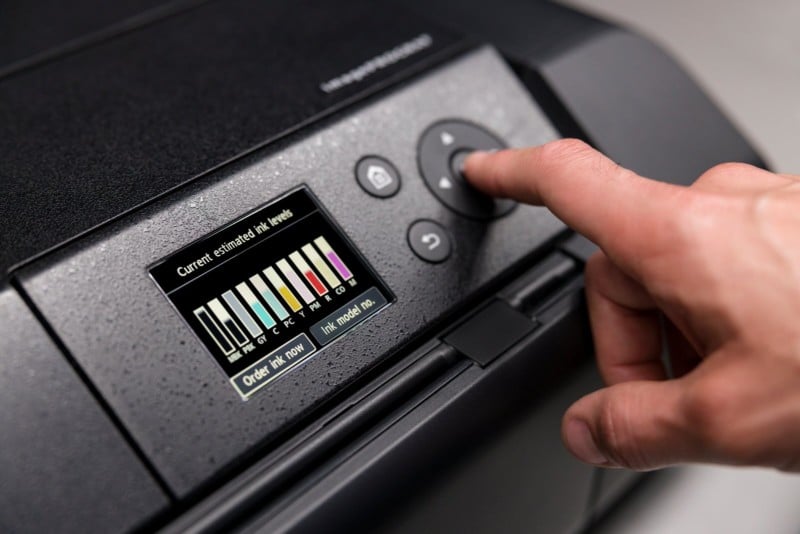
Another way of printing photos is with a 1-hour processor or minilab. You might find the colors aren’t consistent with your color management at these places. This color change is because many of the Fujifilm, Noritsu, Kodak, or Konica machines print in an sRGB color profile. So, in summary, consider what printer you will use to print your photo, as it can drastically affect the resulting color!
How to Select the Color Space in Adobe Photoshop
Adobe is the most popular photo editing software, thanks to the excellent set of features it offers. For example, if the default color settings of Adobe aren’t yielding desired results, you can constantly adjust the settings to match the requirements of the image you’ve captured. Read More...